Affiliate and Rewards Guide
Use this guide for affiliate mode, referral links, invitation cards, rewards, withdrawals, Lark workflows, points, team details, and tax-form tasks in the GDC App.
For affiliate program rules, see the Affiliate Program.
Activate affiliate mode
Some older users may already have affiliate mode available. Newer users may need to activate it manually.
To activate affiliate mode:
- Open the GDC App.
- Go to the Affiliate area.
- Follow the activation prompts.
- Complete any required quiz, agreement, or identity verification steps.
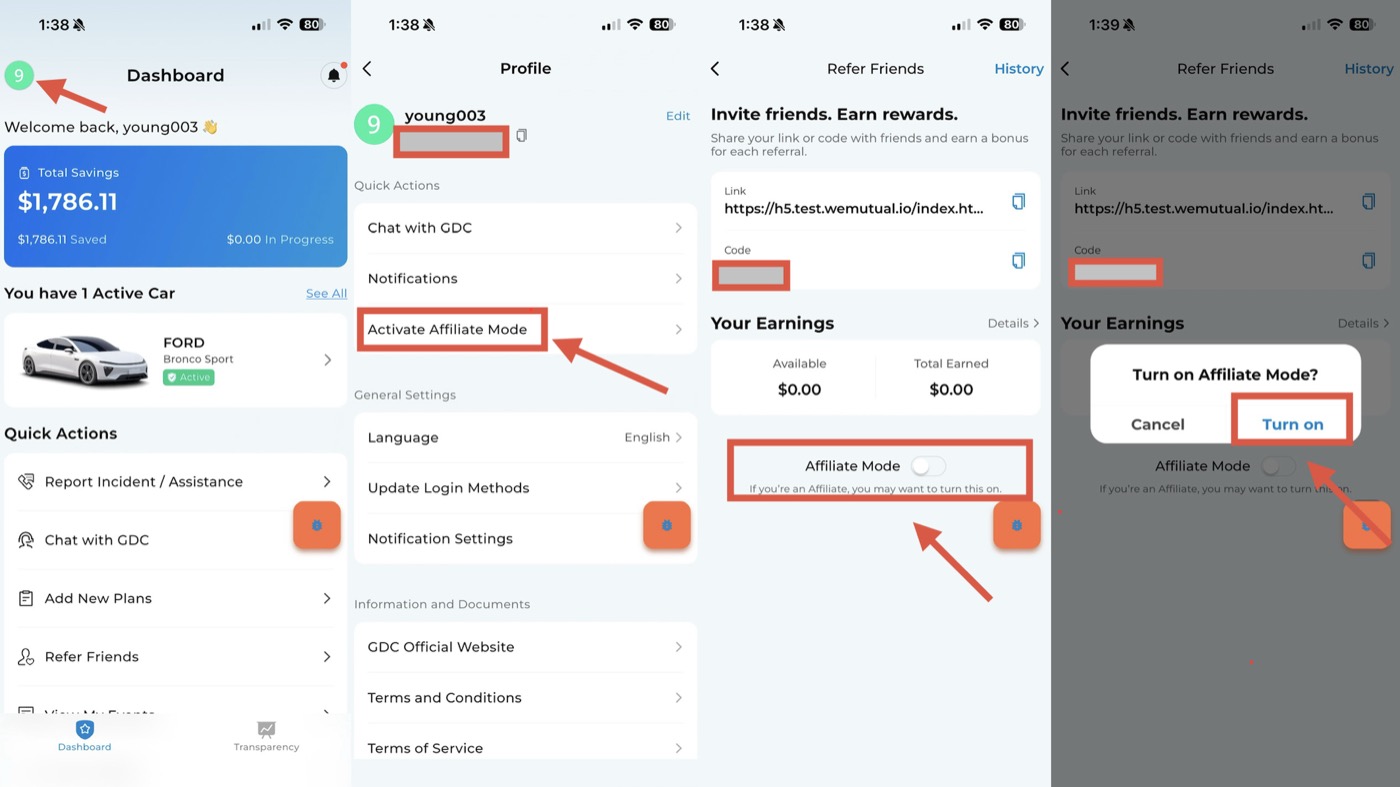
Full visual guide: How to Activate Affiliate Mode.
Check affiliate title
To check your affiliate level or title:
- Open the GDC App.
- Tap Affiliate in the bottom-right corner.
- Check the icon or title next to your account nickname.
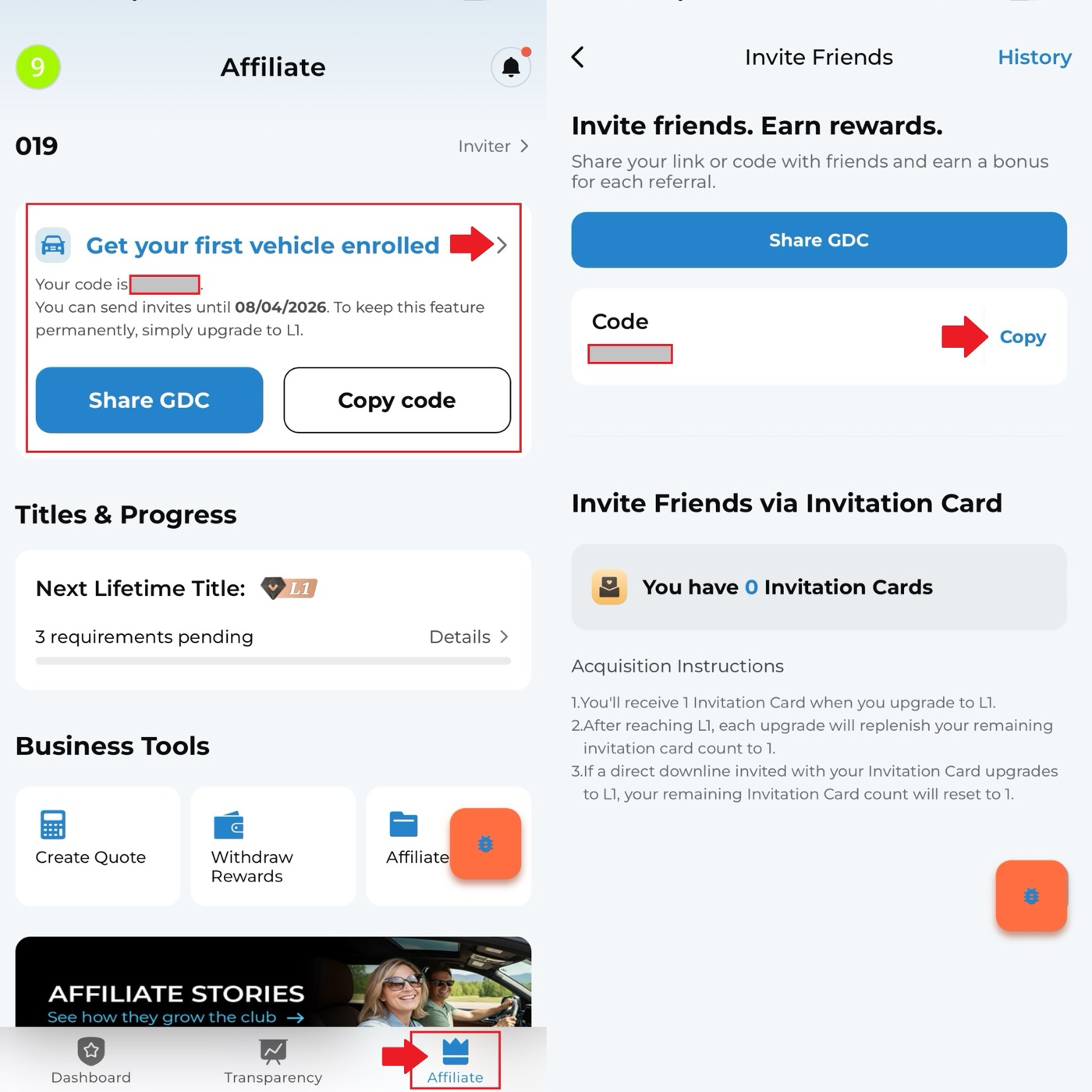
Find referral code and link
To find your referral code or link:
- Open the GDC App.
- Tap Affiliate.
- Tap Copy Referral Code or Copy Referral Link.
- Share the copied code or link with the person you want to invite.
Use an invitation card
An invitation card can be used for friends who are currently unable to join through a mutuality plan.
To find an invitation card:
- Tap Affiliate.
- Open Invite More Vehicles to Join.
- Copy the invitation card link.
- Share it with the recipient.
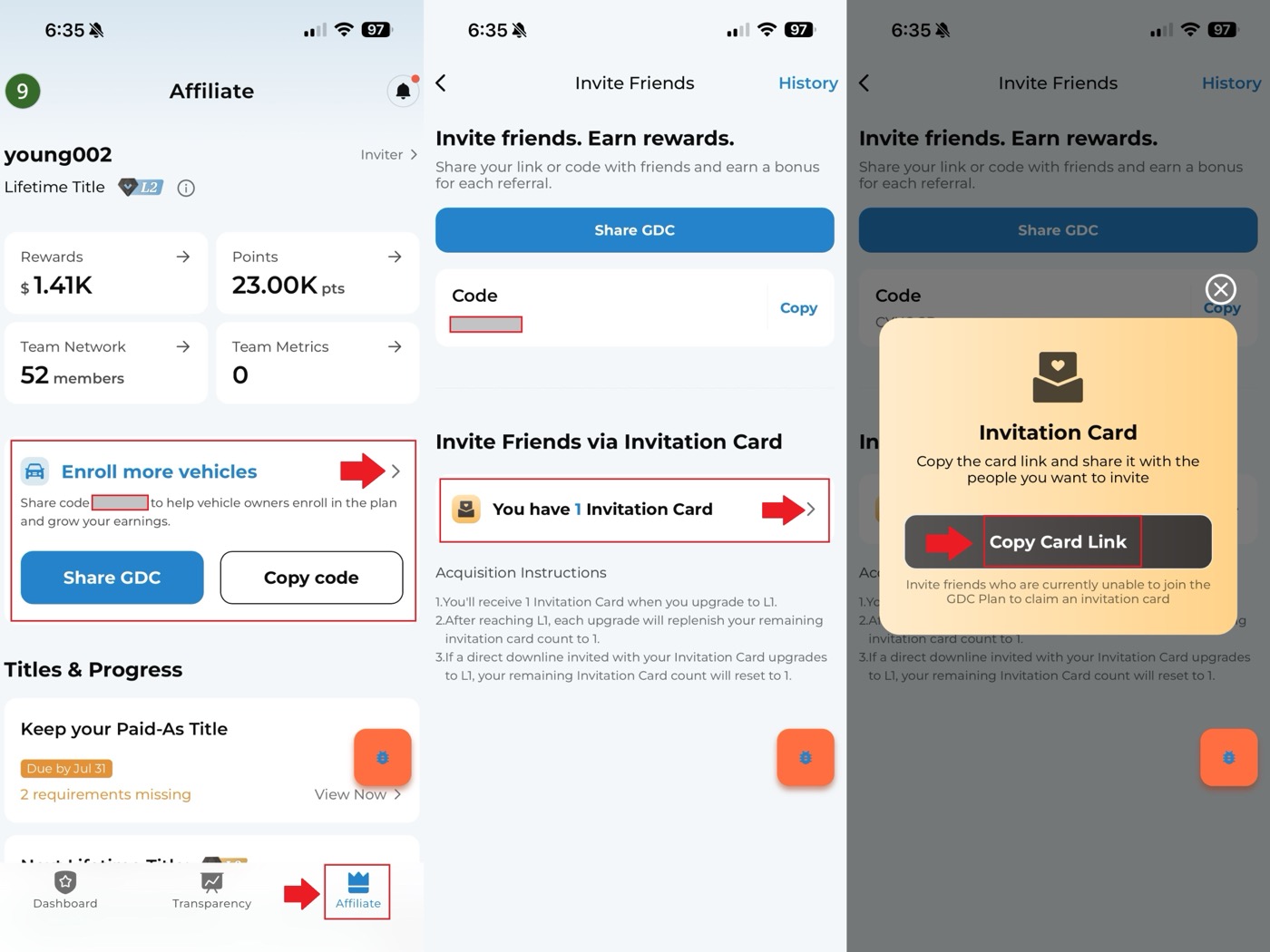
Full visual guide: How to Activate an Invitation Card.
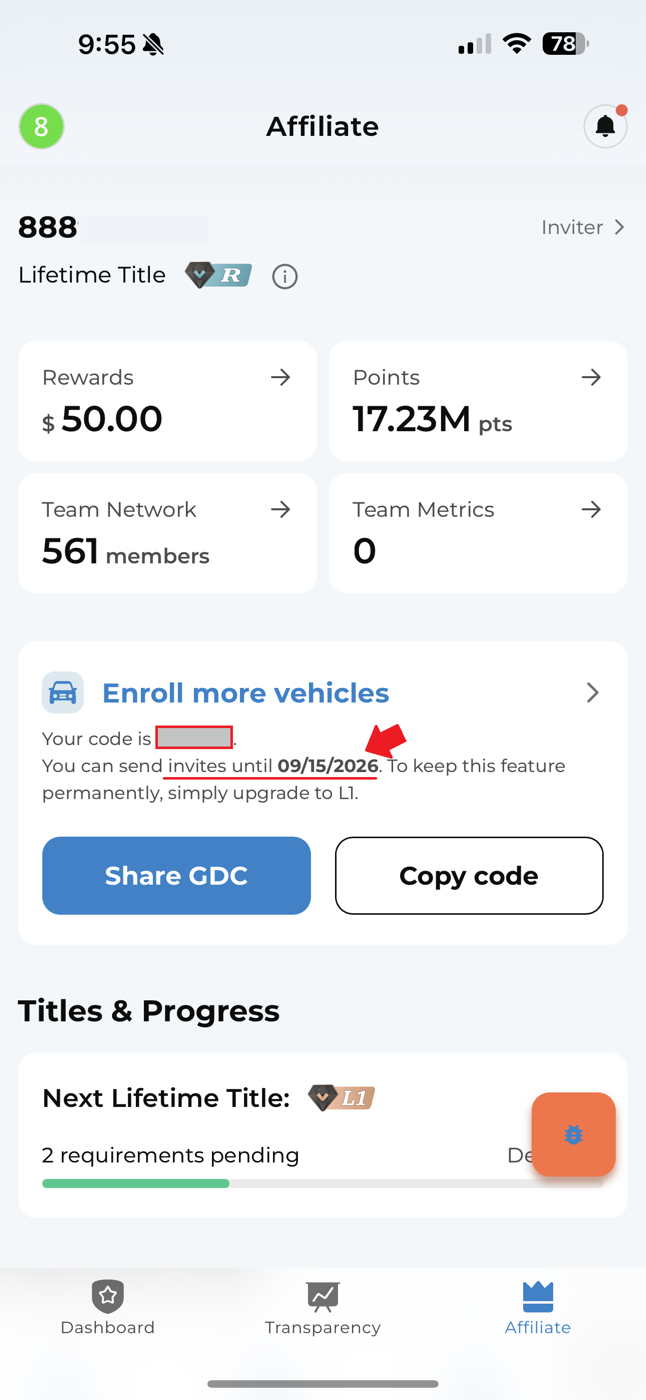
Check invitation capability
To check whether invitation capability is active:
- Open the GDC App.
- Go to Affiliate.
- Review the invitation capability status.
- If it is active, the page shows the expiration date.
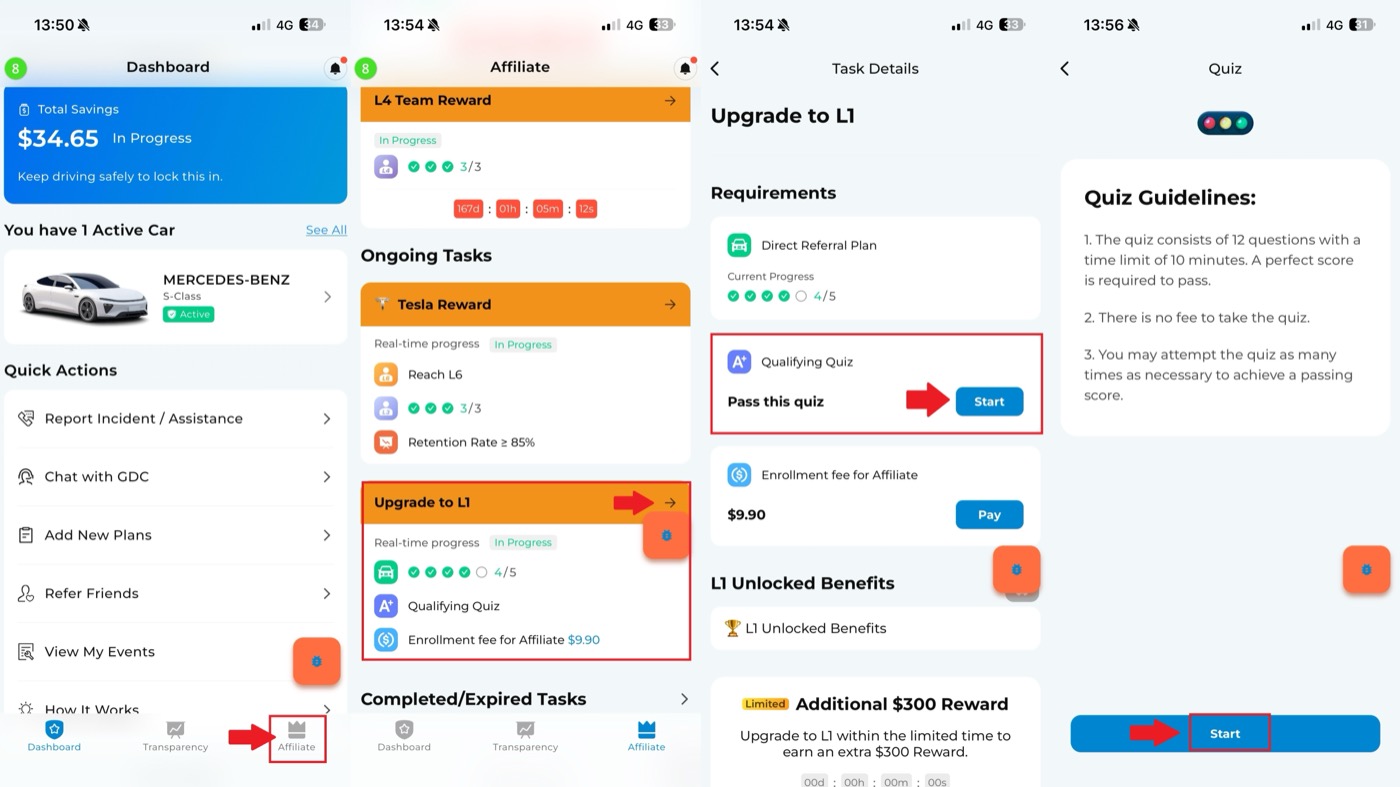
Upgrade to L1
To take the L1 upgrade exam:
- Open the GDC App.
- Tap Affiliate.
- Find the Upgrade to L1 task card under ongoing tasks.
- Open the task details.
- Tap Start for the qualifying quiz.
To upgrade from referrer to L1, you need to pass the Affiliate Qualification Quiz. The L1 upgrade or referral/affiliate renewal fee may appear as a $9.90 payment step when required.
View affiliate agreements
To view referrer or affiliate agreement documents:
- Tap your profile icon in the top-left corner.
- Go to Information and Documents.
- Open the relevant referrer or affiliate agreement.
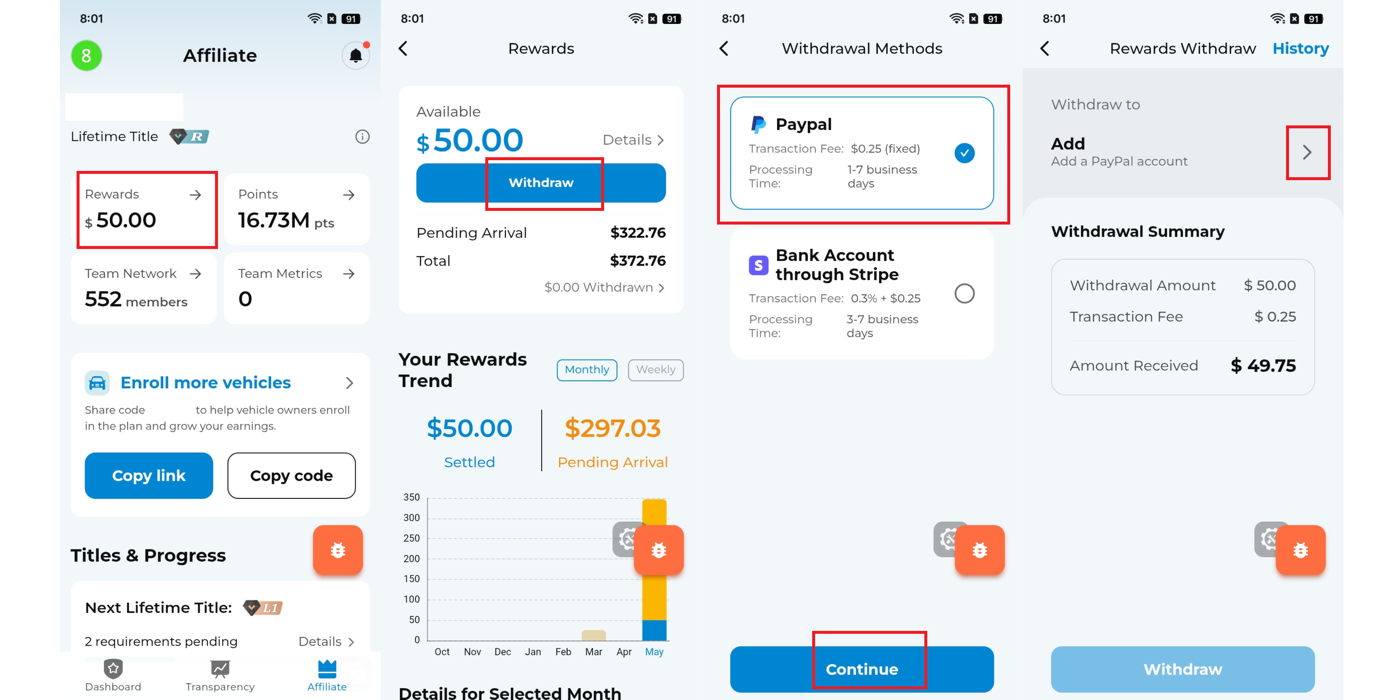
Withdraw rewards through PayPal
For eligible users who can withdraw by PayPal:
- Go to Affiliate.
- Tap Rewards.
- Tap Withdraw.
- Select PayPal.
- Tap Add to link a PayPal account.
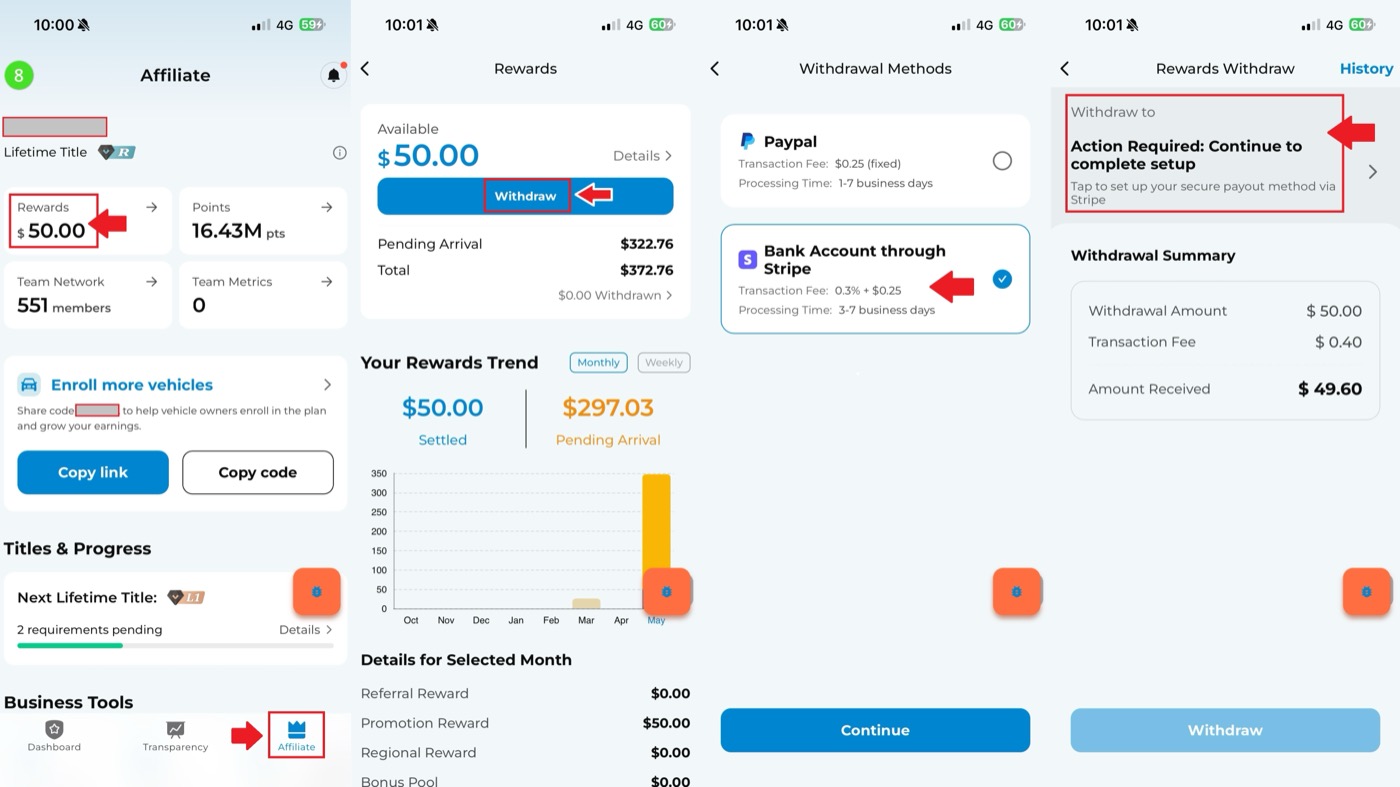
Withdraw rewards through Stripe
To withdraw through Stripe:
- Go to Affiliate.
- Tap Rewards.
- Tap Withdraw.
- Select Stripe as the withdrawal method.
- Tap Continue to Complete Setup.
- Follow the Stripe prompts to complete account setup.
Withdraw rewards to a company account
If you need to withdraw rewards as a company:
- Go to Affiliate.
- Tap Rewards.
- Tap Withdraw.
- Select Bank Account through Stripe.
- Tap Create and Link a Stripe Account.
- Choose to withdraw rewards As a Company.
- Continue to Stripe and follow the prompts.
Lark app and Lark withdrawal
Some affiliate workflows use Lark.
To log into Lark:
- Open the Lark App.
- Choose phone-number login.
- Enter your mobile number.
- Enter the one-time verification code sent by SMS.
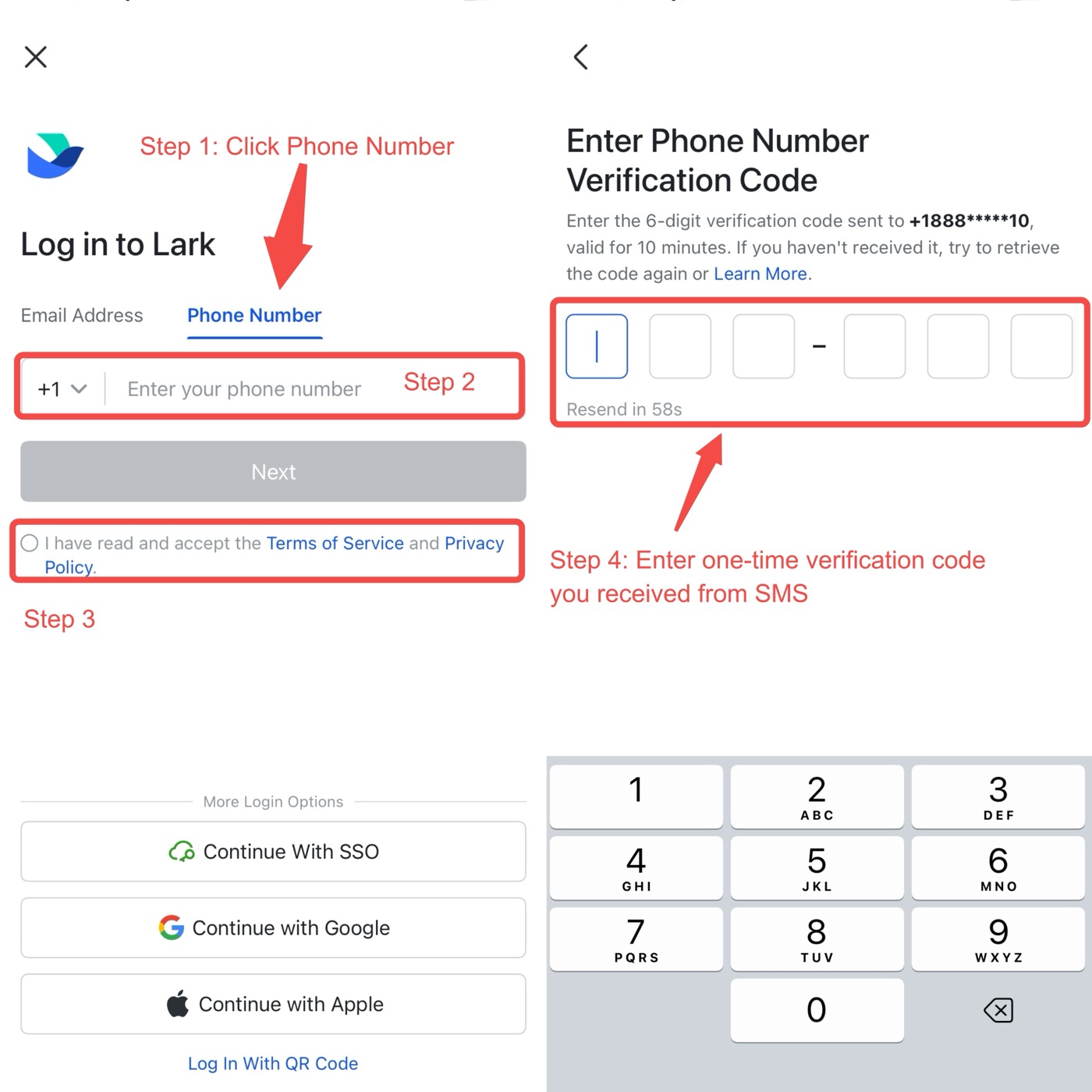
If the expected affiliate group does not appear in Lark, check whether you are logged into the Lark account connected to the phone number registered with your GDC account.
To log out of Lark:
- Tap your profile picture in the top-left corner.
- Tap Settings.
- Scroll down and tap Log Out.
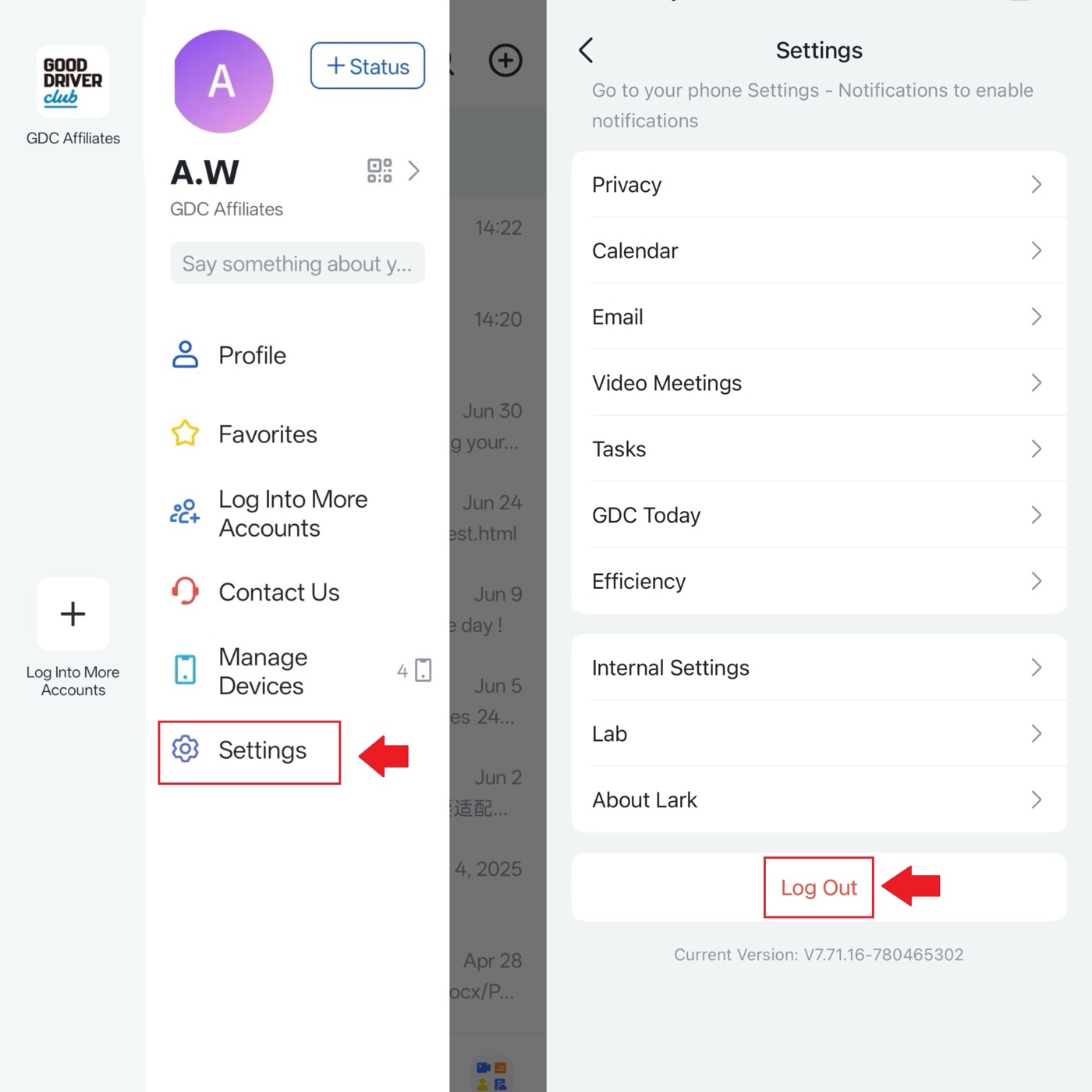
Visual guides:
If a Stripe setup link opened from Lark does not continue correctly, open the menu in the top-right corner, copy the link, and open it in a mobile browser. Then continue the setup prompts from the browser.
Lark withdrawal is for eligible higher-level affiliates. Referrers and lower-level affiliates should use the withdrawal methods available in their own app workflow.
Reward status
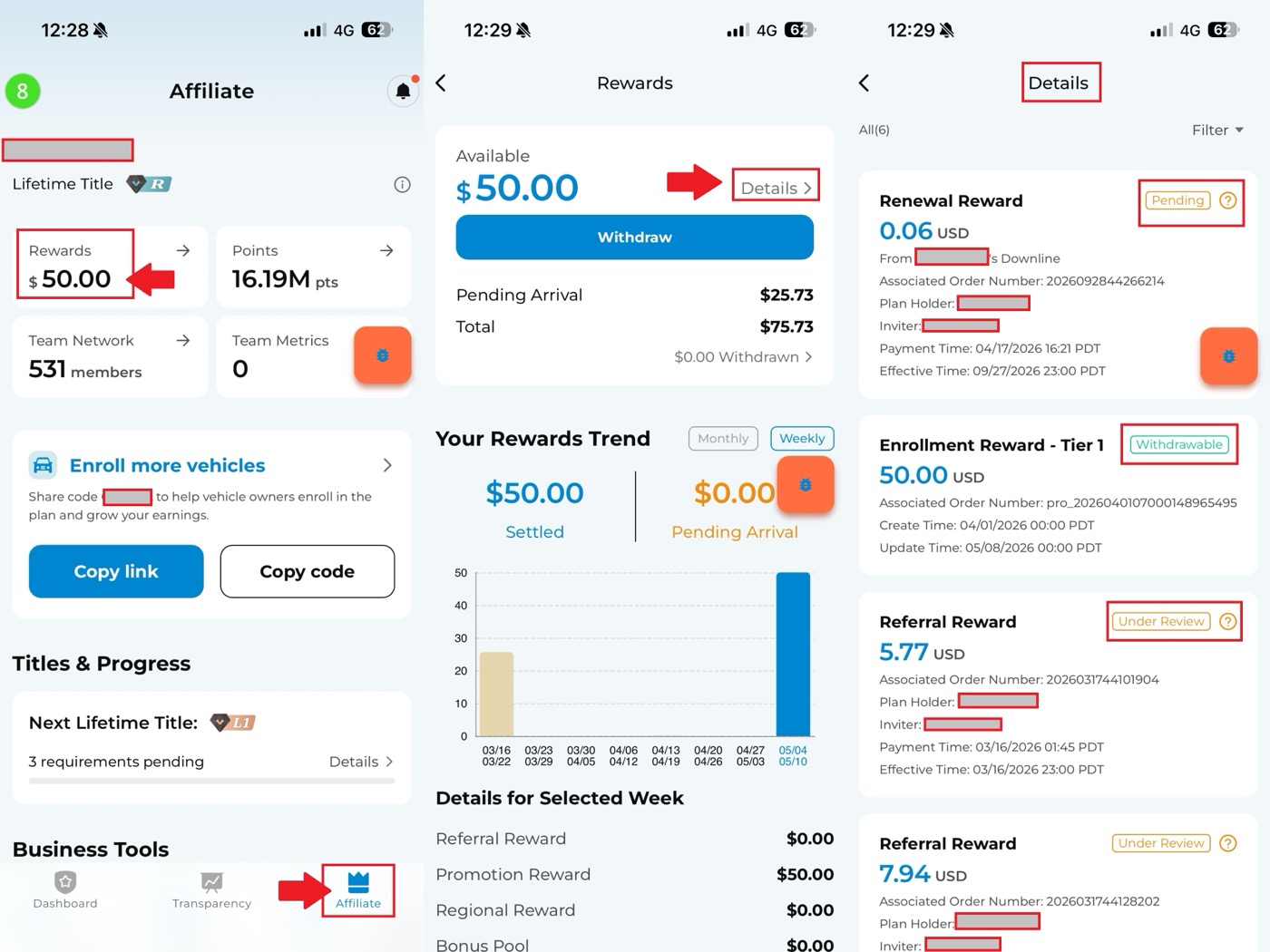
To check reward status:
- Go to Affiliate.
- Tap Rewards.
- Tap Details.
- Tap the question-mark icon next to the status label.
Common statuses include:
- Pending: The plan is pending or already active, but the service fee has not yet been successfully received by GDC. This usually occurs when the plan holder uses ACH payment.
- Withdrawable: The reward has been issued and is available for withdrawal.
- Under Review: GDC is reviewing the materials submitted during the quotation process.
- Canceled: The plan was canceled before it became active.
- Reclaimed: The plan became active but was later canceled, so the reward has been reclaimed.
Points and team details
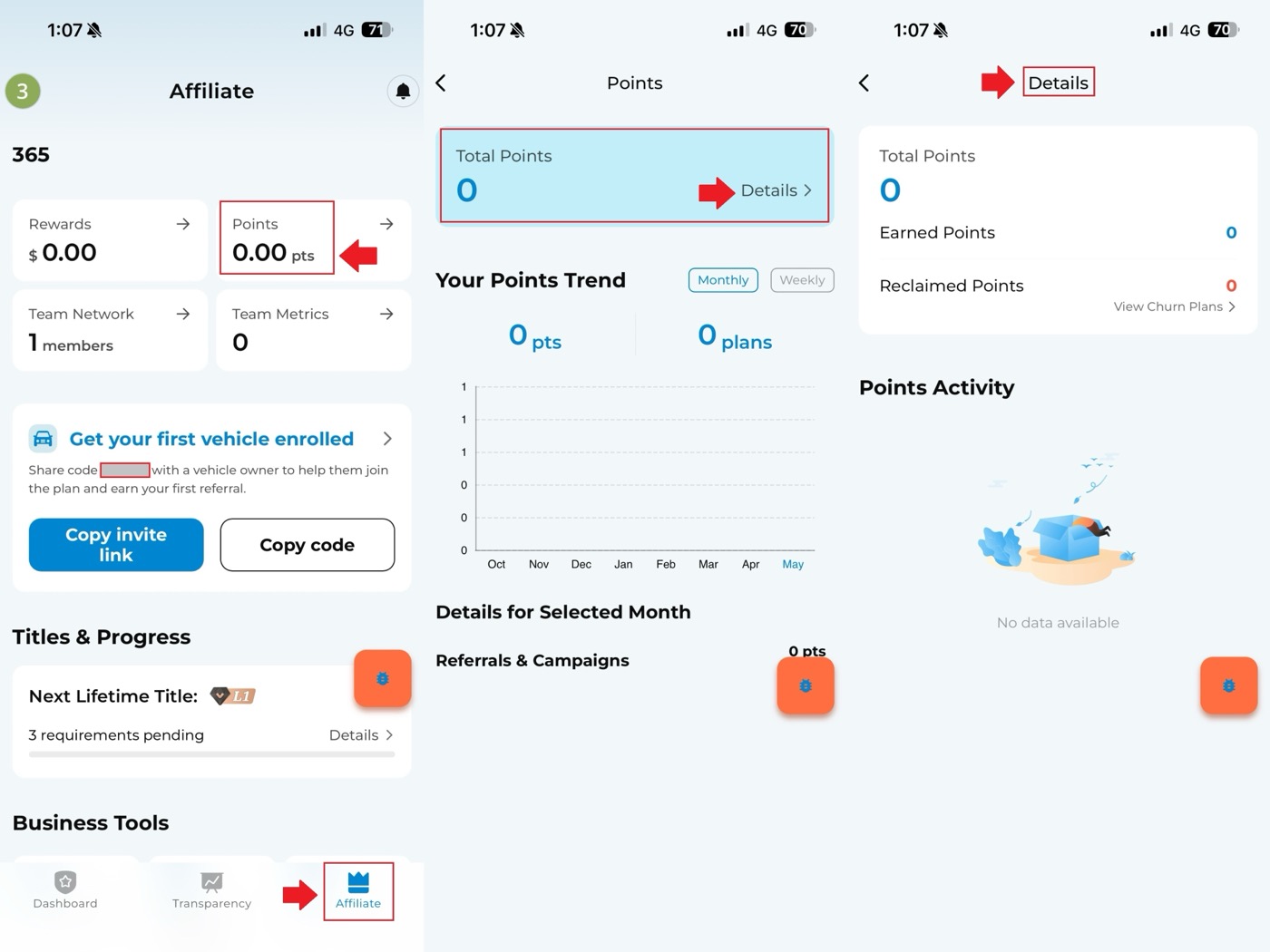
To check points:
- Go to Affiliate.
- Tap Points.
- Tap Details to view point activity.
To check team metrics:
- Go to Affiliate.
- Find Team Metrics.
- Review team information such as retention rate.
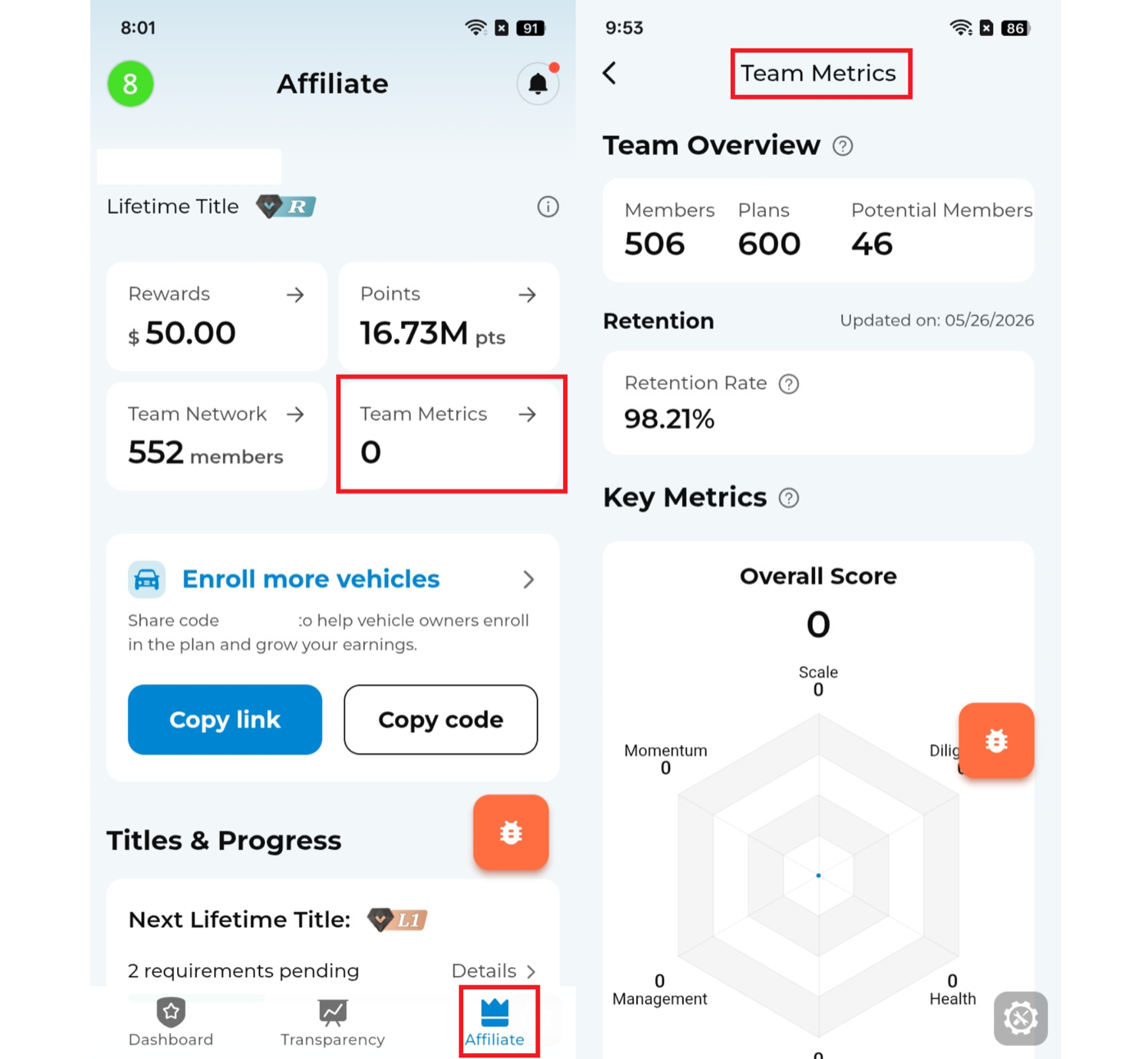
To view direct downline information:
- Go to Affiliate.
- Tap Team Network.
- Review available direct referral information.
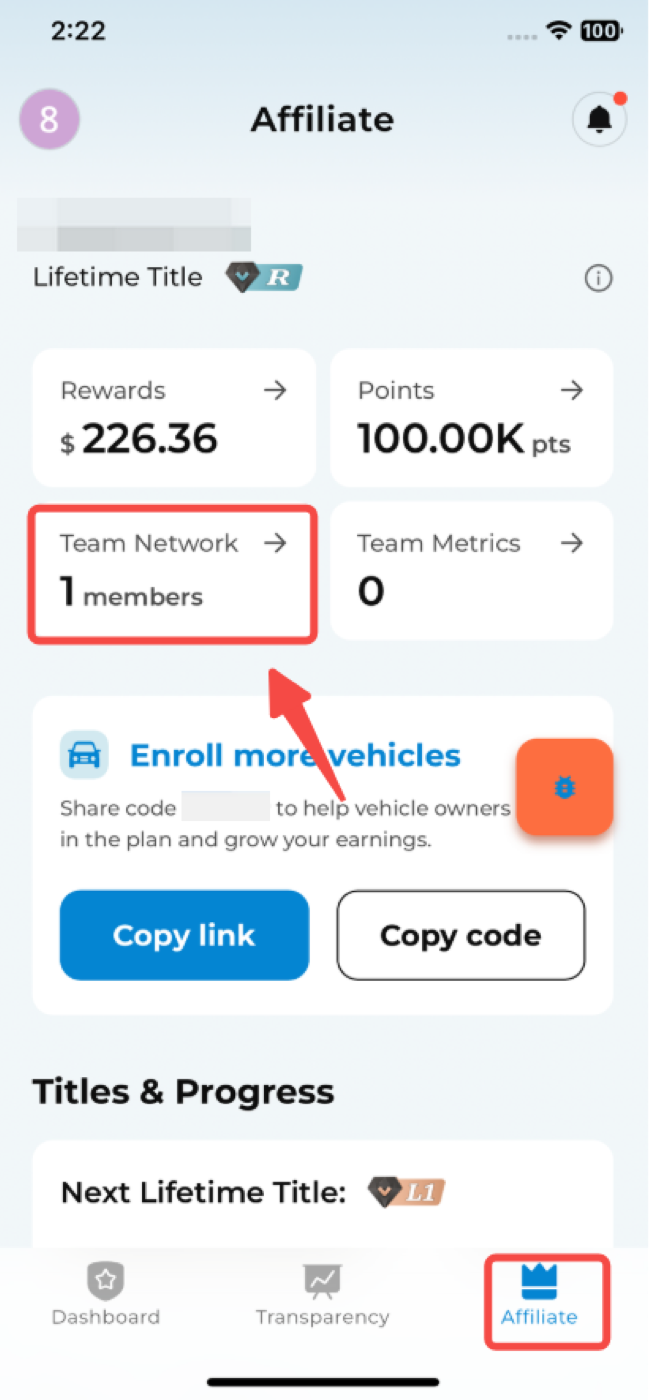
For affiliates with larger teams, a desktop version of Team Network may be available from the app. Open Affiliate > Team Network and use Desktop Version if it appears. The desktop version uses a browser and Lark app login.
To view a downline's referrer code:
- Go to Affiliate.
- Tap Points.
- Select the direct downline you want to review.
- View the available invitation code.
If the user has not enabled affiliate mode, their invitation code may not be available.
Potential churn plan list
The affiliate rewards page may show a risk prompt for potential churn plans. Open the prompt to review plans that may require attention.
Downline growth records
To add a growth record for a downline:
- Go to Affiliate.
- Tap Points.
- Choose a downline from the team contribution ranking.
- Tap Add Growth Record.
- Follow the prompts and submit the record.
To update the record later, open the growth profile and update the rating information. The downline does not see rating records added by others.
Affiliate materials and posters
Affiliate materials are available from the Affiliate page. Scroll down to Affiliate Toolkit to find available materials.
Afternoon webinar links may also appear under Affiliate Learning Hub. Open Affiliate, scroll to the learning hub, and check the schedule and link.
To edit and share an invitation poster:
- Go to Affiliate.
- Tap Share GDC.
- Open Poster.
- Tap Edit.
- Fill in the information.
- Save and share.
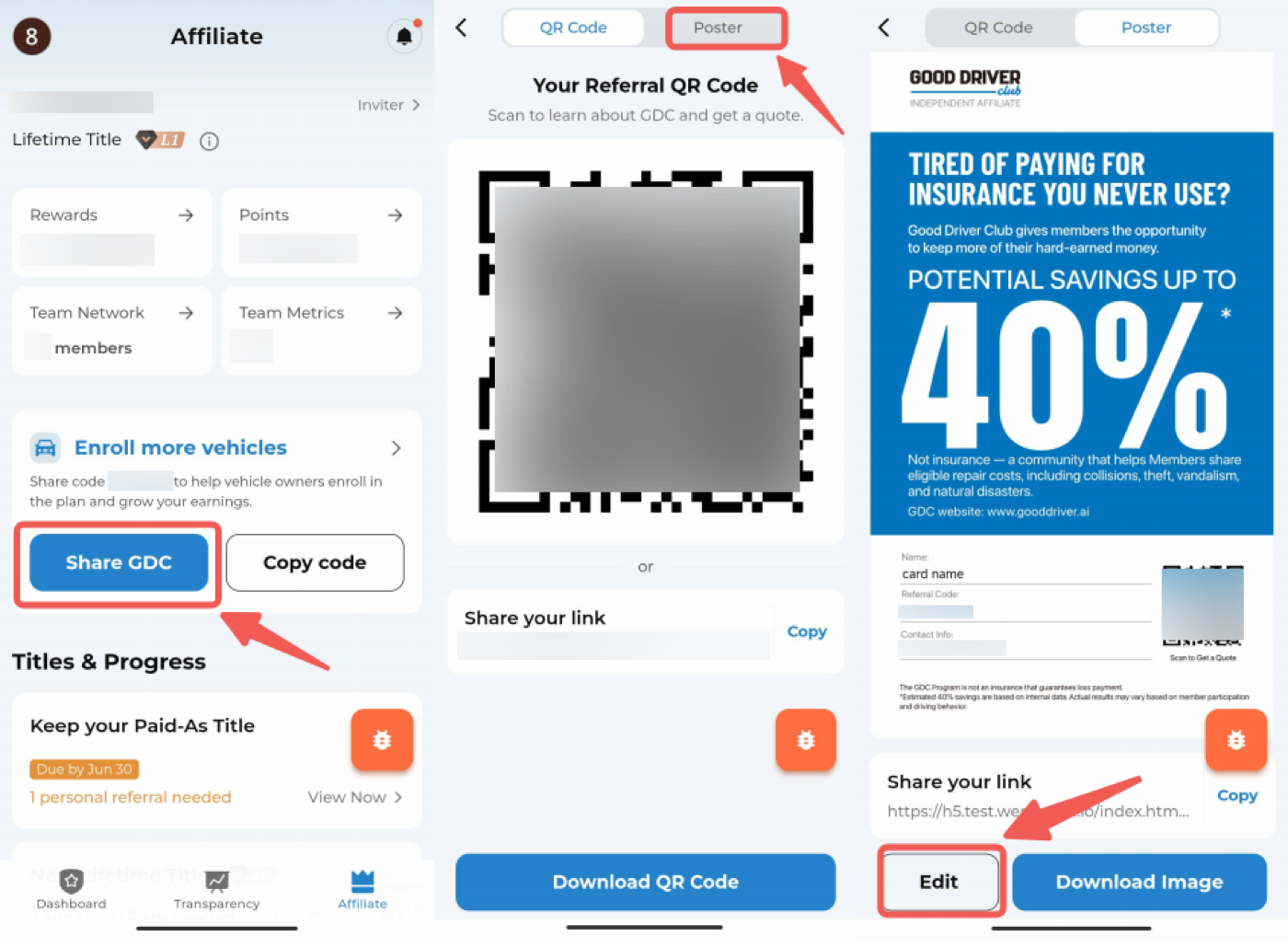
Full visual guide: How to Invite Friends to GDC.
Tesla bonus progress
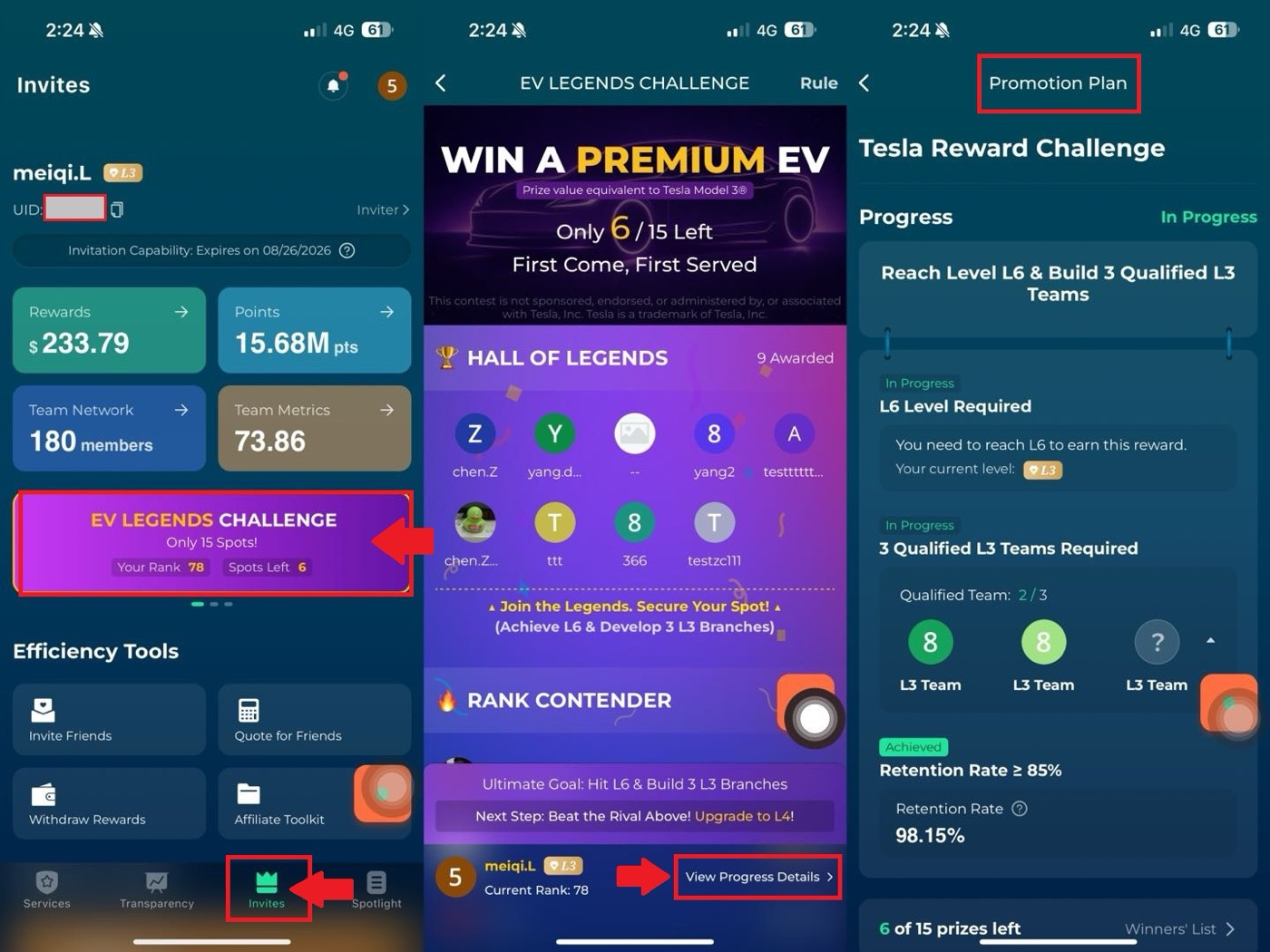
To check Tesla challenge progress:
- Go to the affiliate promotion area.
- Open the Tesla challenge.
- Tap the progress details at the bottom of the page.
The Tesla reward is limited in quantity, with 15 cars available while supplies last.
W-9 form
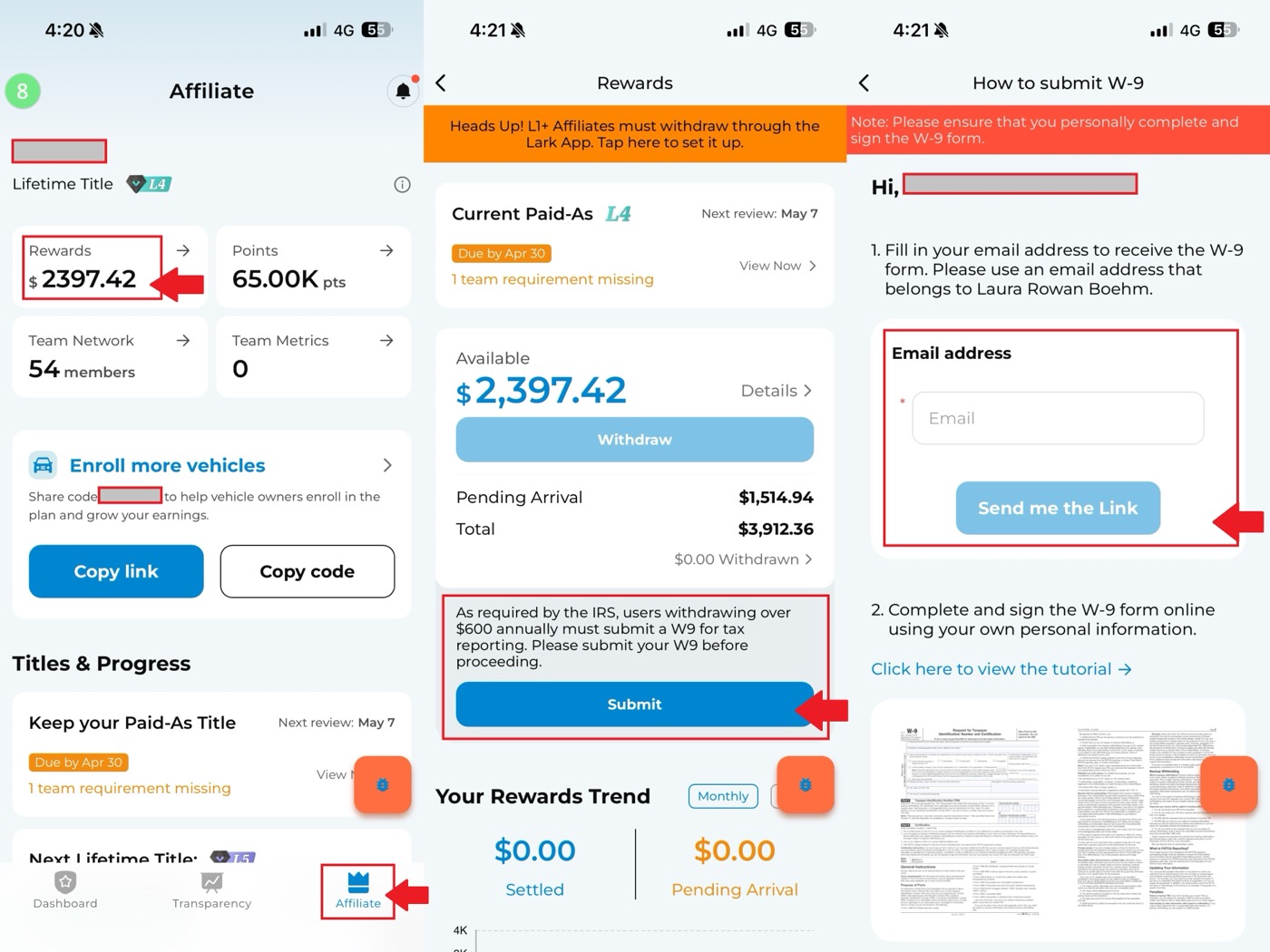
According to IRS requirements, annual reward withdrawals over $600 require a W-9 form for tax reporting.
To submit a W-9:
- Go to Affiliate.
- Tap Submit.
- Enter your email address.
- Wait for the W-9 email.
- Fill in the personal information and submit the form through the provided process.
The name on the W-9 form needs to match the account holder's name exactly.
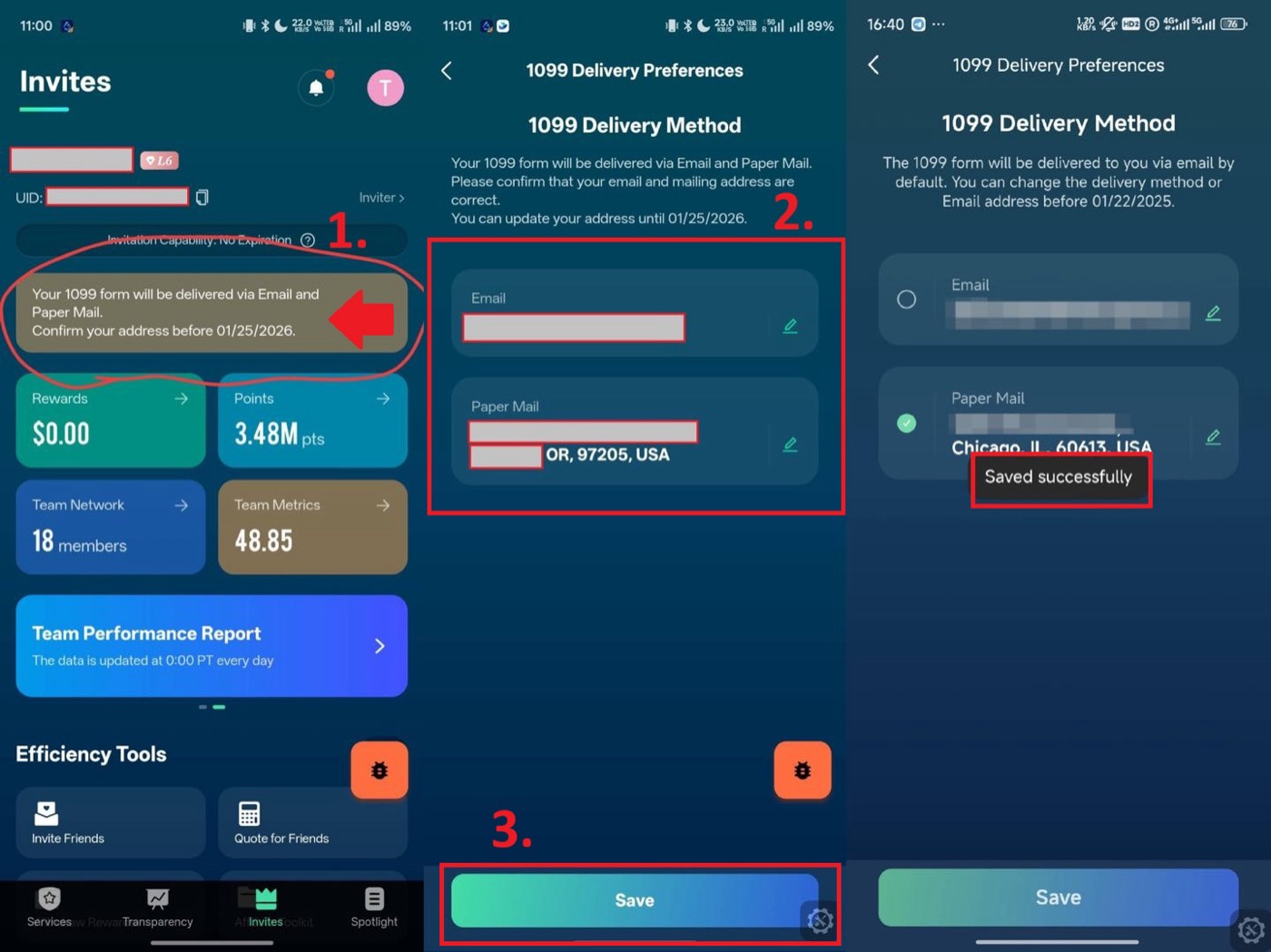
1099 mailing address
If the app asks you to confirm 1099 delivery information:
- Open the 1099 update prompt.
- Edit the email address or mailing address if needed.
- Save the updated information.
- If the information is already correct, no change is needed.