Payments, Billing, and 3DS Guide
Use this guide when you need to update a payment method, complete card verification, manually pay a failed sharing contribution, or find bill details in the GDC App.
For payment rules, transaction fees, pledge amount, and outstanding contribution rules, see Pricing, Payments, and Pledge and Payments, Settlement, and Outstanding Contributions.
Change an authorized payment method
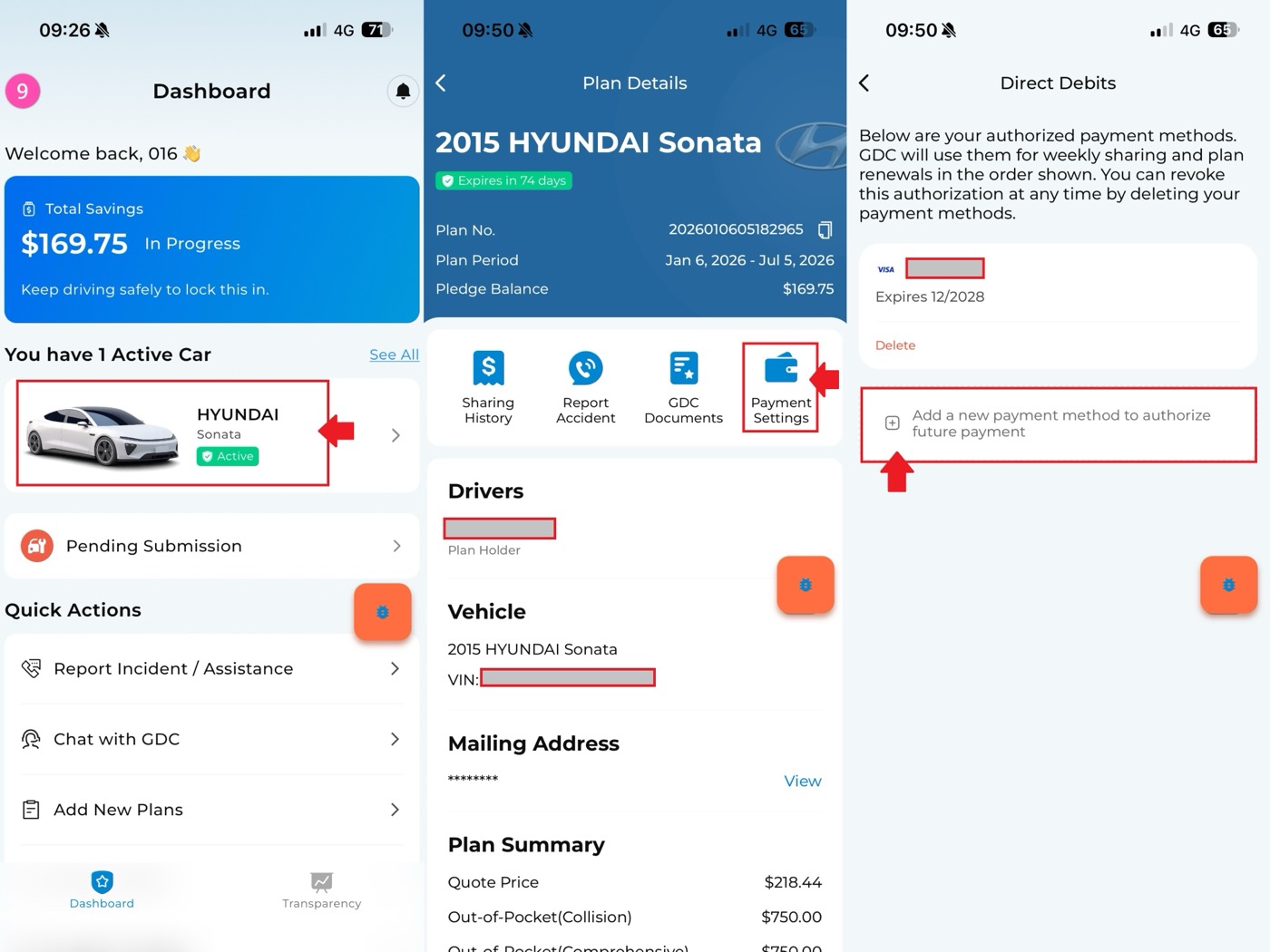
To add or change the payment method used for a mutuality plan:
- Open the GDC App.
- On the Dashboard page, select the mutuality plan you want to update.
- On the Plan Details page, select Payment Settings.
- On the Direct Debits page, add your preferred payment method.
If multiple bank cards are set up, the system will attempt to deduct payment starting from the first payment method in sequence until the payment is successful.
Remove a payment method
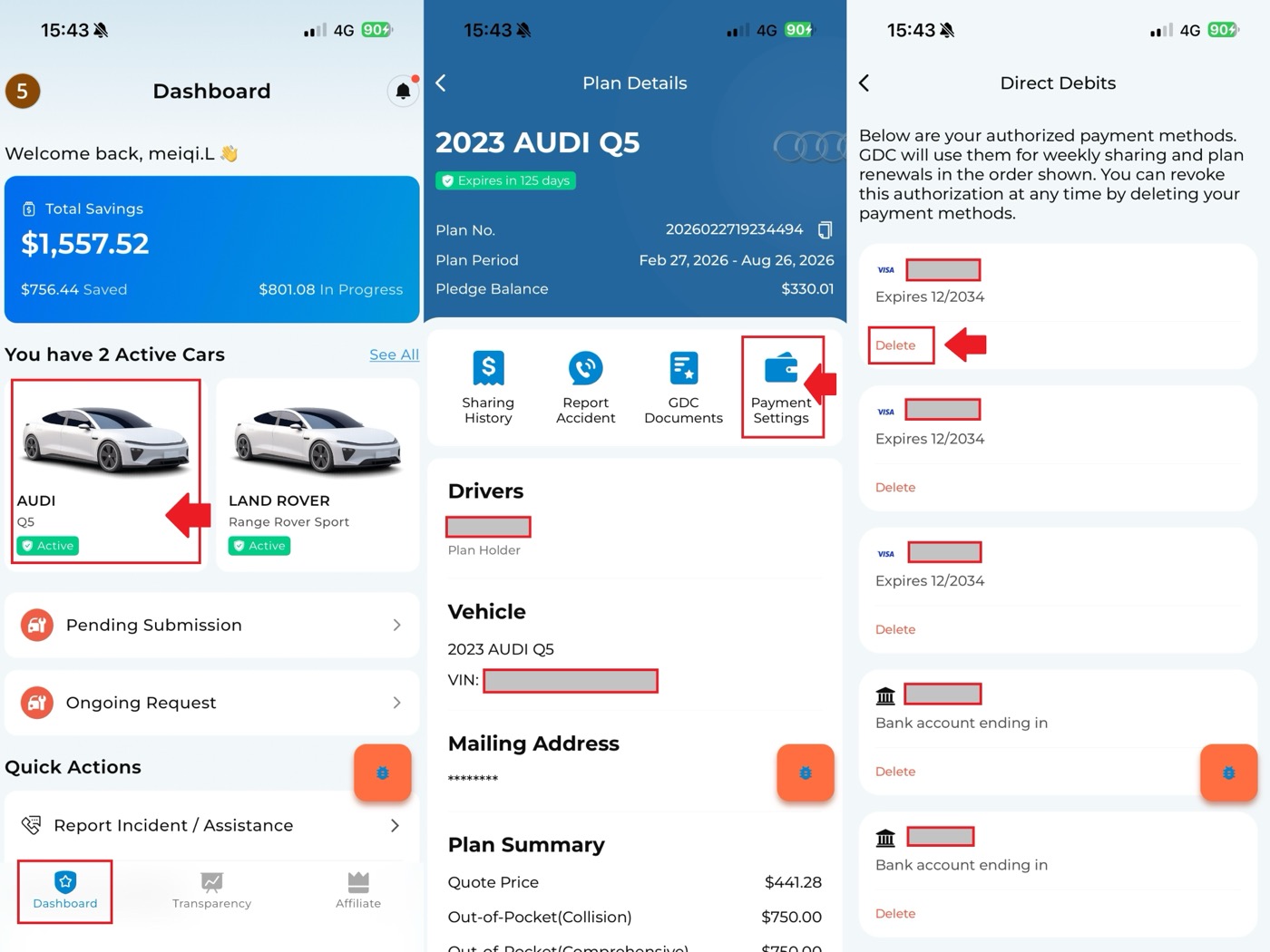
To remove a linked payment method:
- On the Dashboard page, select the mutuality plan.
- Select Payment Settings to view the linked bank cards.
- Tap Delete for the payment method you want to remove.
If multiple bank cards are linked, at least one payment method must remain until the mutuality plan expires.
Why one payment method may be required
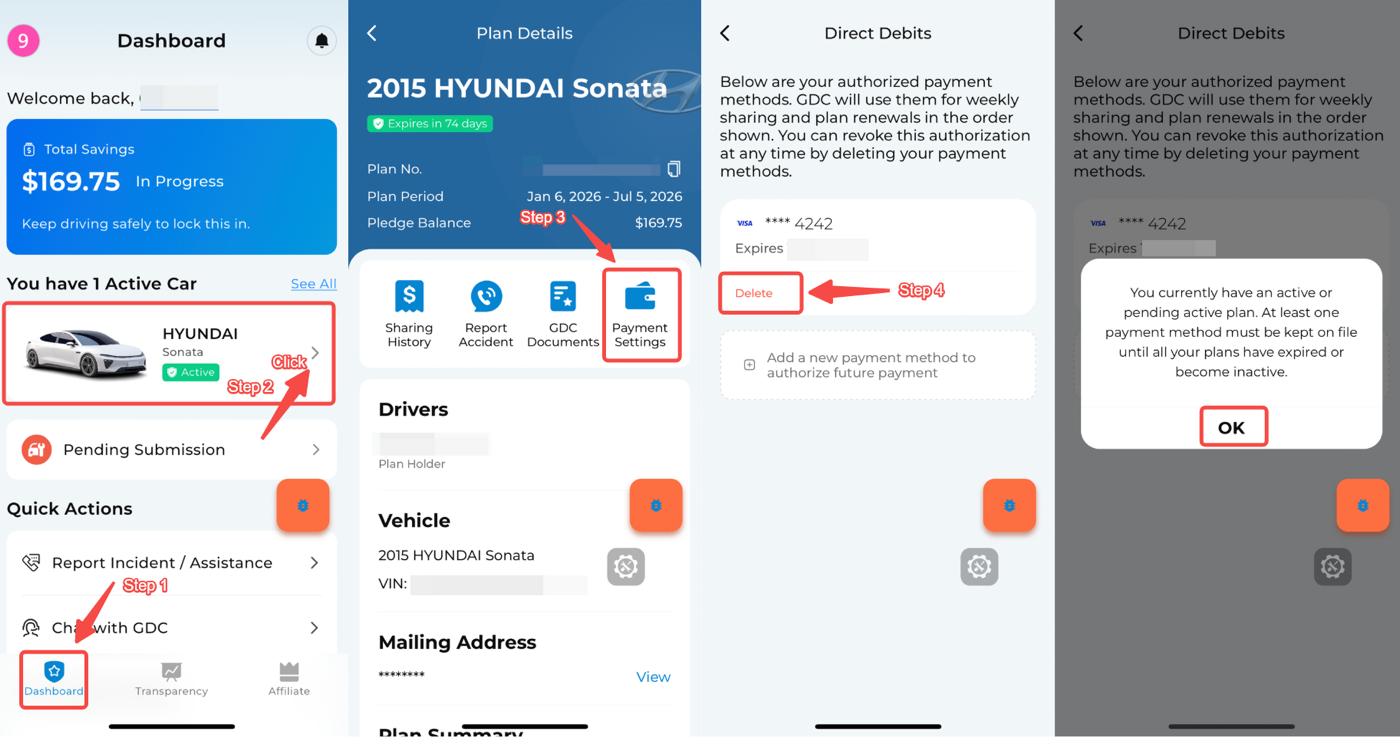
If the mutuality plan is still active and there is only one bank card linked, the app may not allow that card to be removed. At least one payment method is needed while the plan remains active.
Complete 3DS verification
3D Secure, often shown as 3DS, is an extra card verification step used by banks and card issuers for online payments.
3DS may appear when you:
- Add a new card.
- Manually pay an initial service fee.
- Manually pay a renewal service fee.
- Manually pay a sharing contribution.
Depending on the bank's risk review, 3DS may pass automatically without extra action. If extra verification is required, the bank may ask you to confirm the payment through:
- SMS verification.
- A bank app prompt.
- Email verification.
When the prompt appears, follow the bank's instructions, then return to the GDC App to complete the payment.
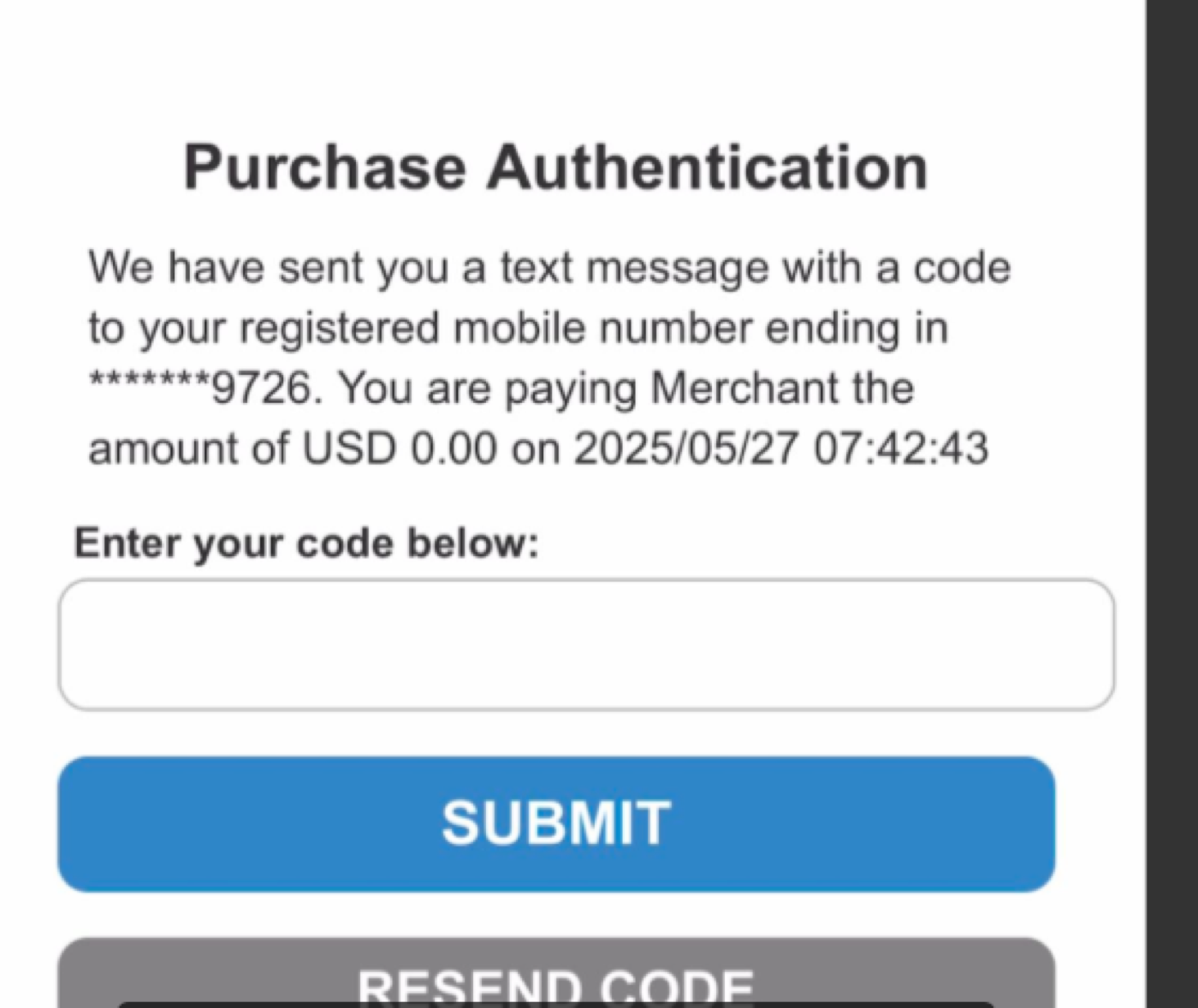
If 3DS is completed but the transaction still fails, try another payment card, use another supported payment method such as ACH, or contact the bank or card issuer to approve the transaction.
Manually pay a failed sharing contribution
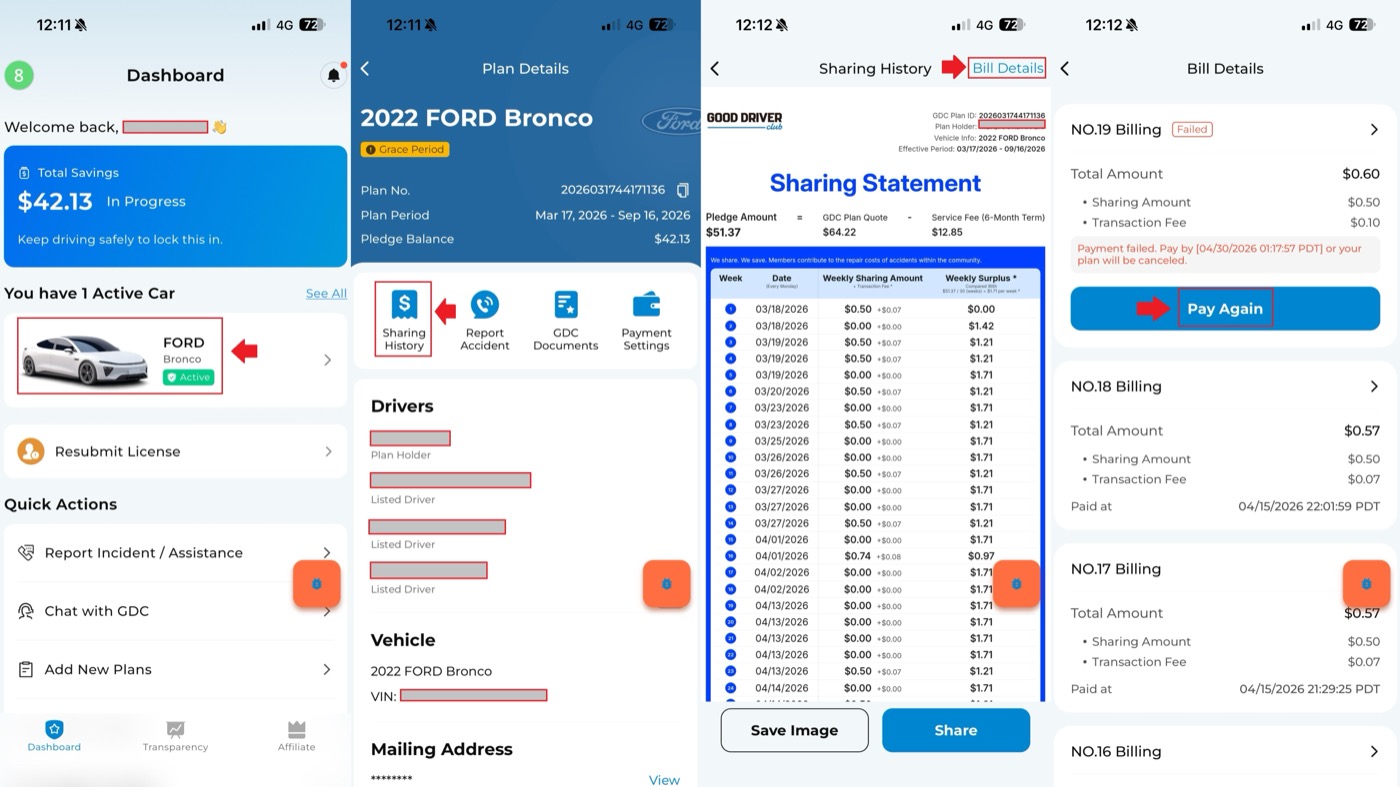
If a sharing contribution shows Payment Failed, you can try to pay it manually:
- Log into your GDC account.
- On the Dashboard page, select your plan to open Plan Details.
- Select Sharing History.
- Open Bill Details.
- Find the contribution labeled Payment Failed.
- Select Change Payment and follow the payment steps.
Check bill details
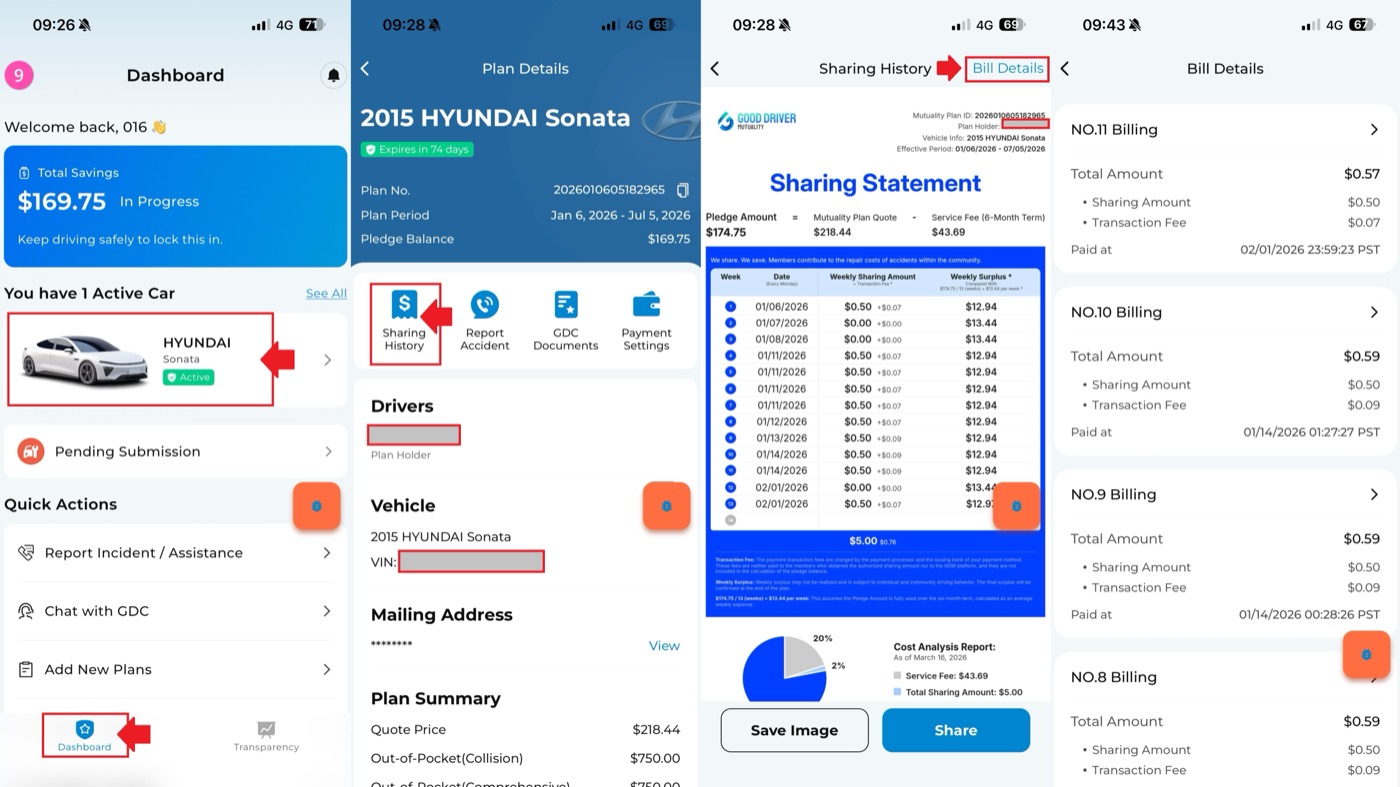
The GDC App can show previous sharing contribution records, including paid sharing amounts and payment times.
To check previous bill details:
- Log into your GDC account.
- On the Dashboard page, select your plan to open Plan Details.
- Select Sharing History.
- Tap Bill Details to review previous bill details.
Settlement Buffer Balance
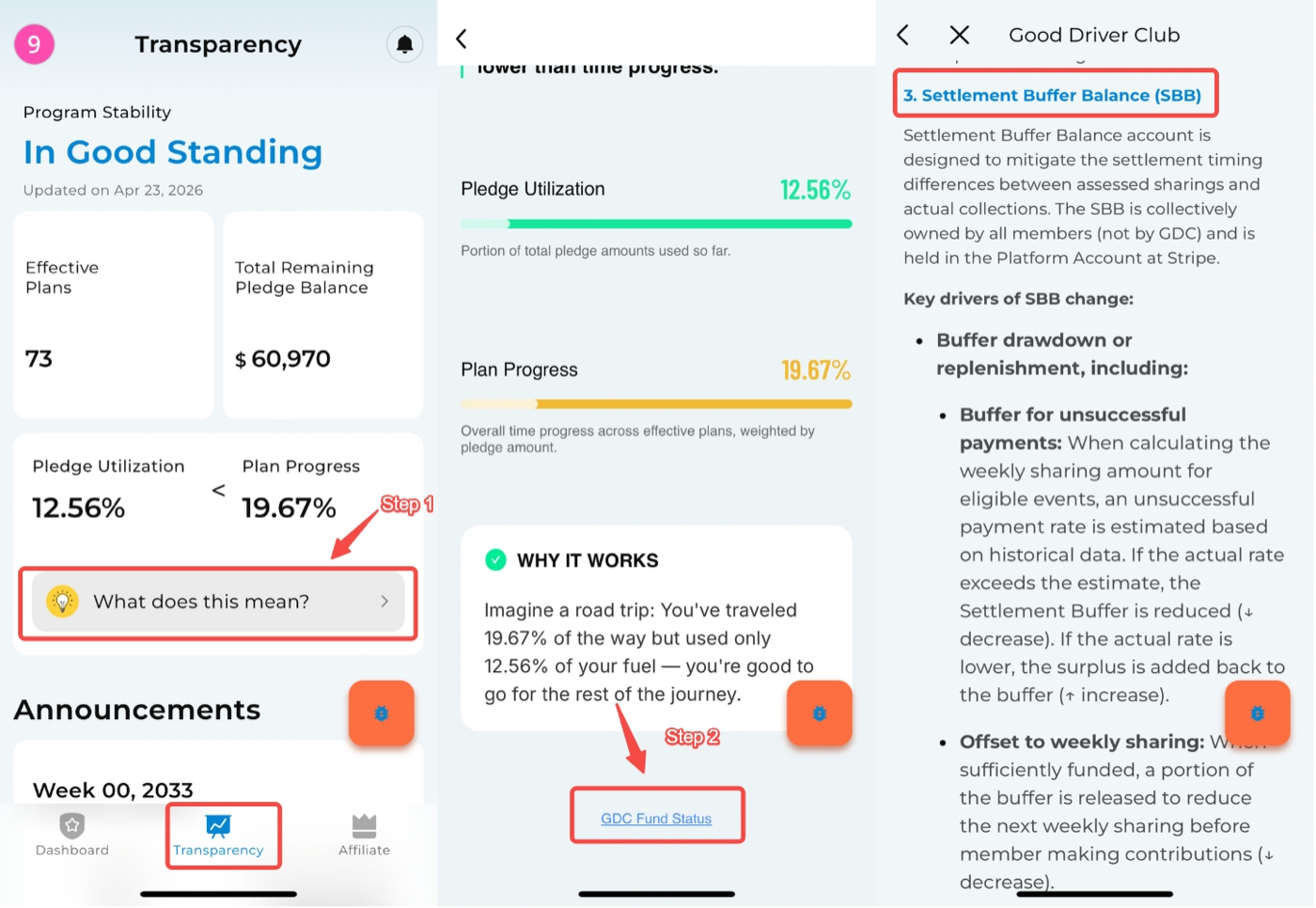
If a sharing announcement appears but the final sharing amount is shown as $0, the amount may have been offset by the Settlement Buffer Balance. In that situation, the member does not need to pay that sharing amount for the cycle.
The Settlement Buffer Balance, or SBB, is a GDC platform account used to handle timing differences between estimated sharing amounts and actual collected amounts.
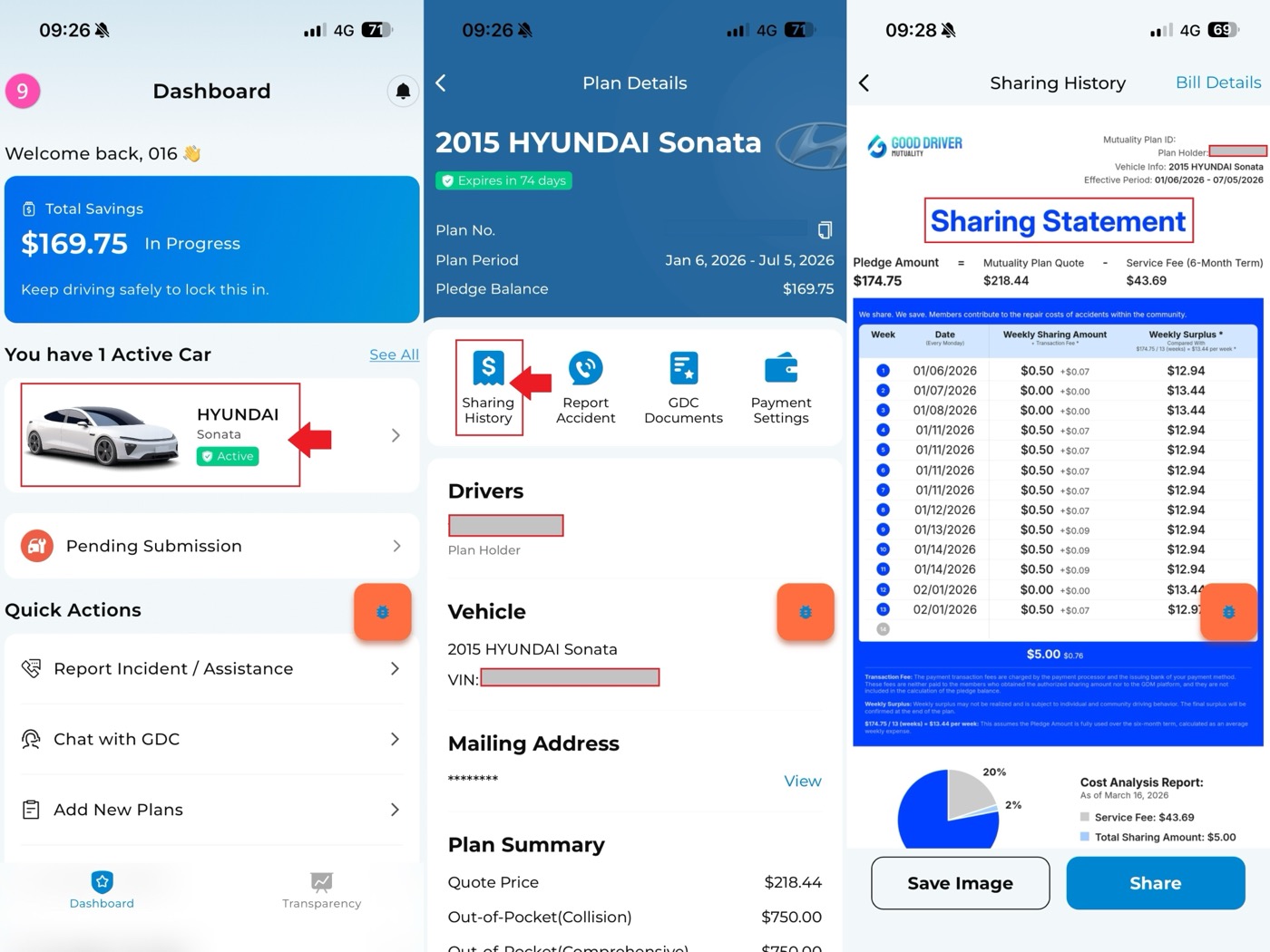
Download weekly sharing bill details
To download or review weekly sharing bill details:
- On the Dashboard, select the mutuality plan.
- Open Plan Details.
- Tap Sharing History.
- Open the sharing bill details.
Find which sharing period a bill belongs to
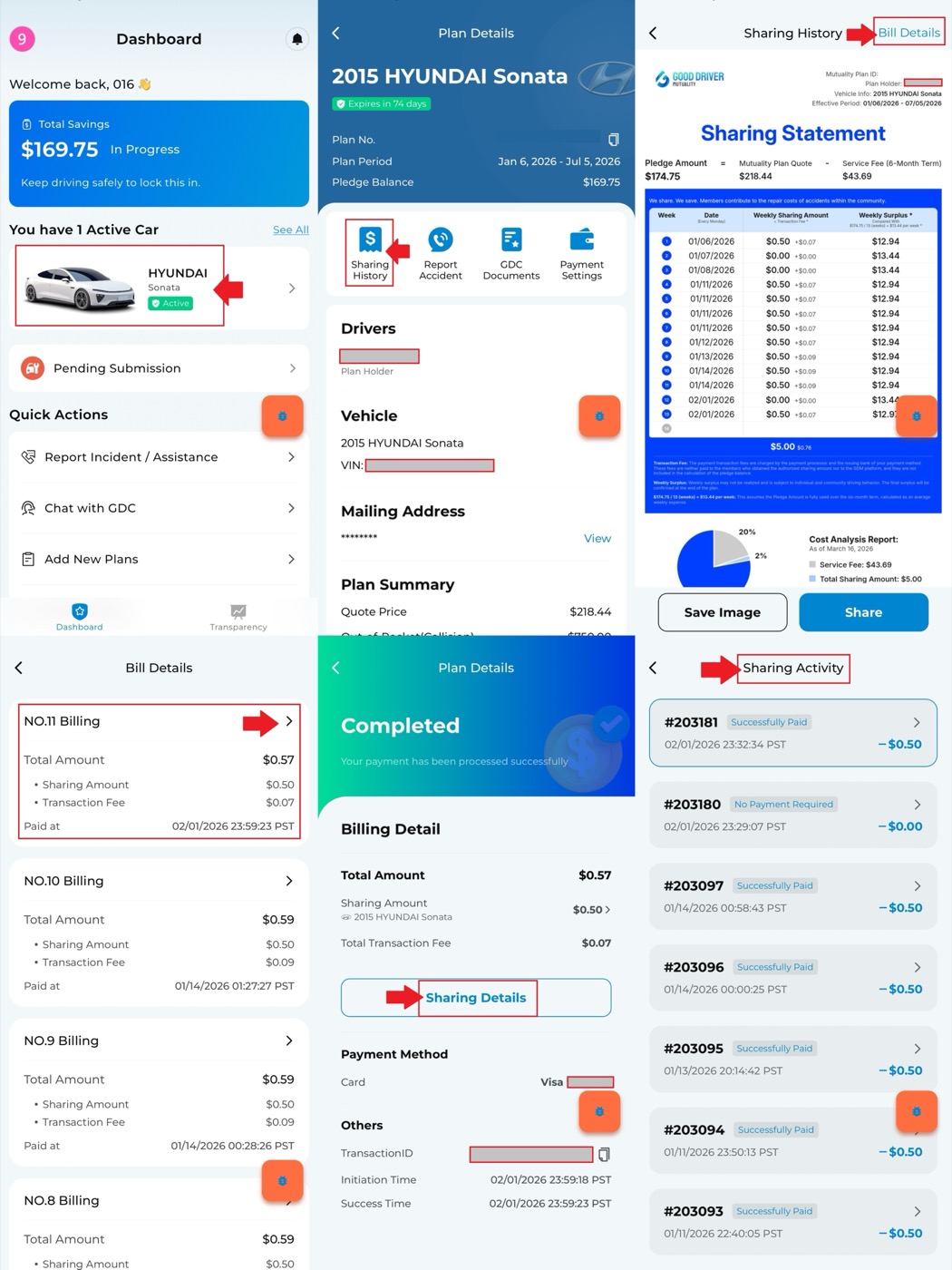
To identify the sharing period for a past bill:
- On the Dashboard, select the mutuality plan.
- Open Plan Details.
- Tap Sharing History.
- Open Bill Details.
- Select the bill you want to review.
- Tap Sharing Details to view the corresponding sharing period.
Check sharing history for an inactive plan
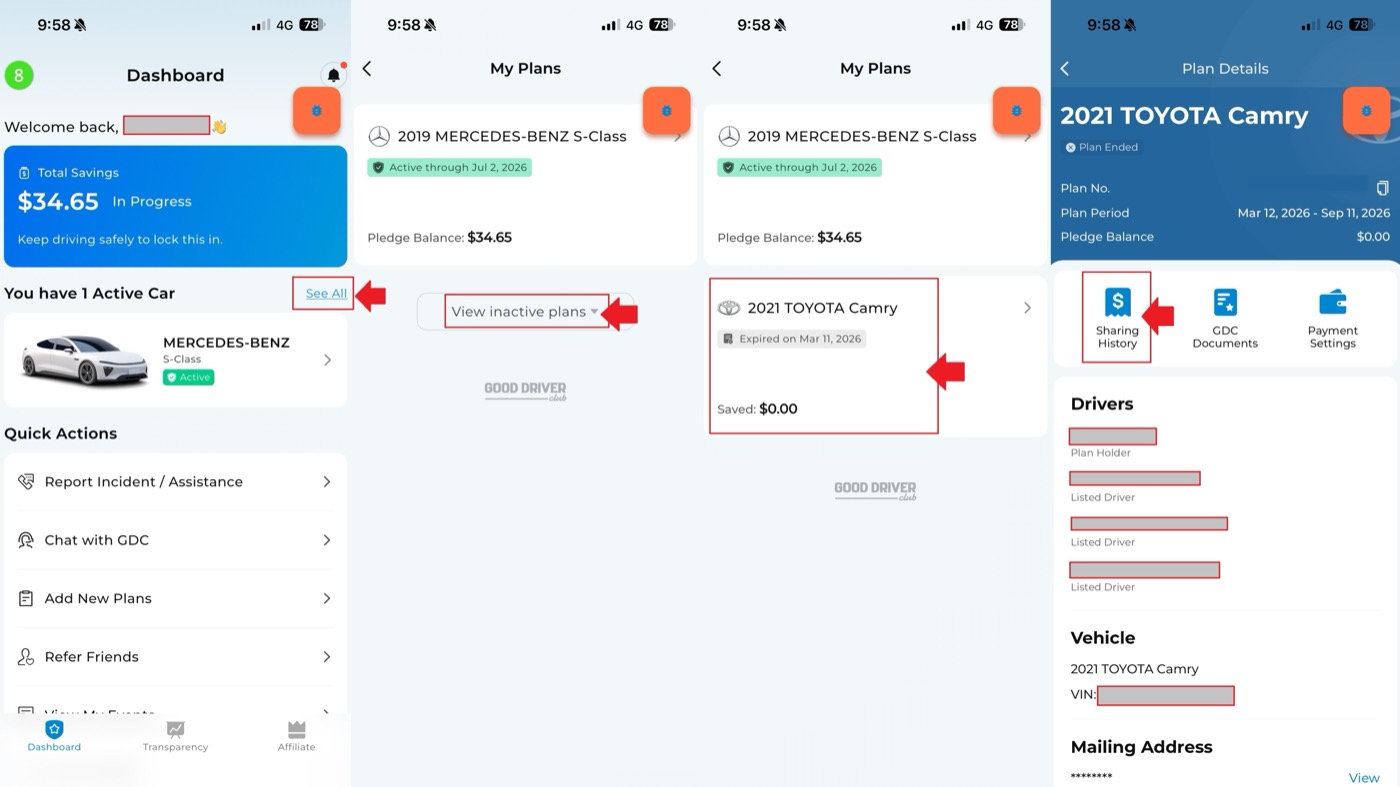
To view sharing contribution history for an inactive plan:
- On the Dashboard, tap View All.
- Tap View Inactive Plans.
- Select the inactive plan.
- Open Sharing History from the plan details page.
Payment troubleshooting
Insufficient funds
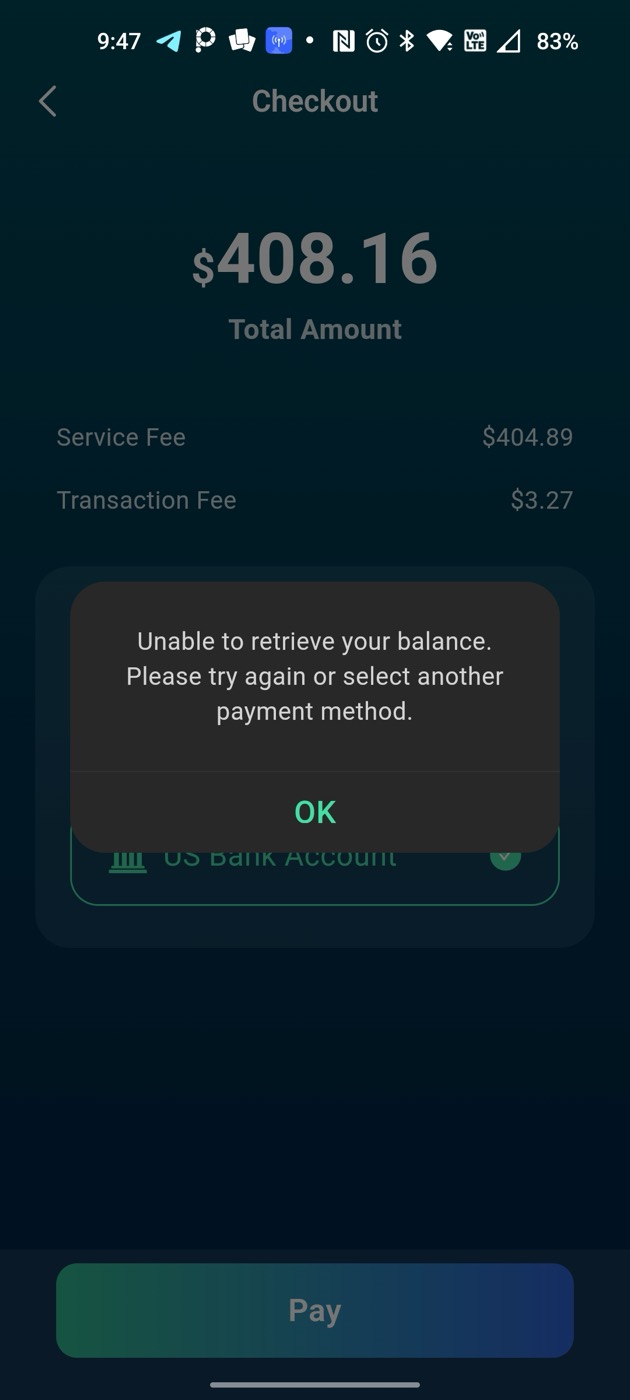
If the app or payment processor reports insufficient funds, make sure the payment account has enough available balance to cover the payment.
If funds were added recently and the account balance is now sufficient, try the payment again after one day. If the balance is sufficient and the payment still fails after one day, contact support for help.
Bank authorization required
If the bank blocks or pauses the debit, authorize the deduction in the bank's app or contact the bank directly. After the bank authorizes the deduction, try the payment again.
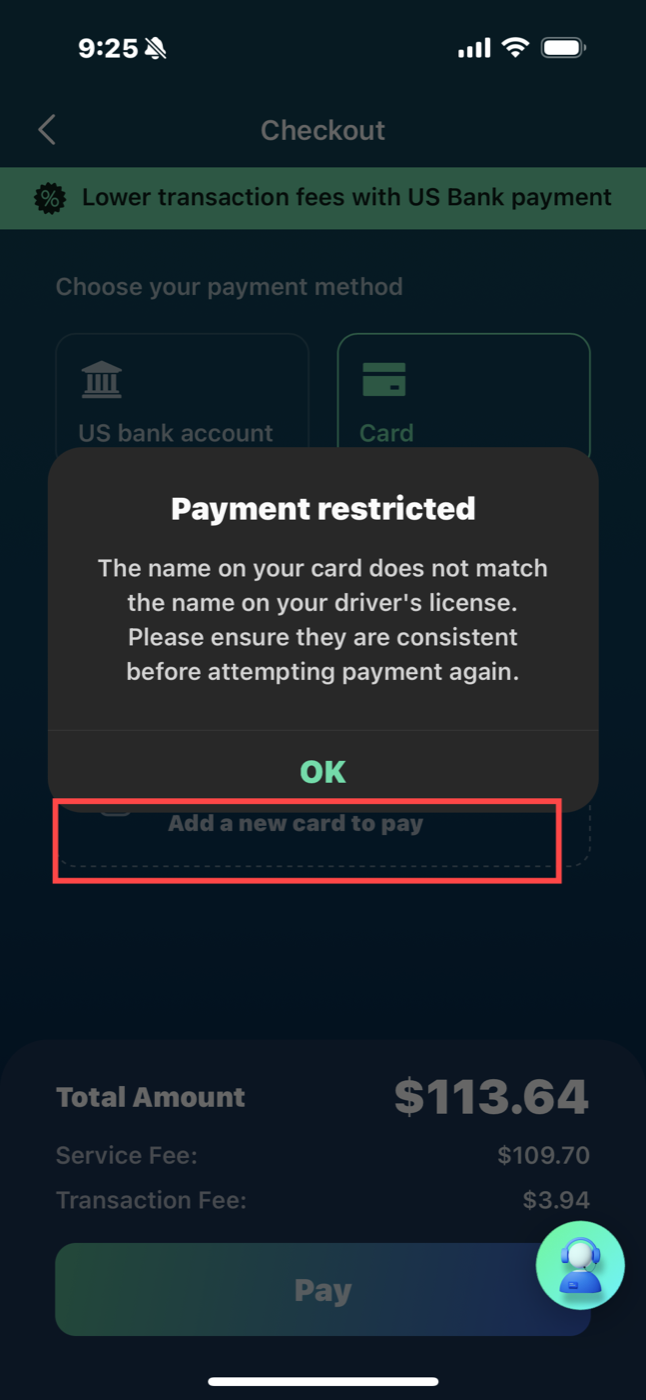
Payment method name does not match
For consistency and security, the name on the payment method needs to match the name on the driver's license. Use a payment method with the same name as the driver's license to complete the transaction.
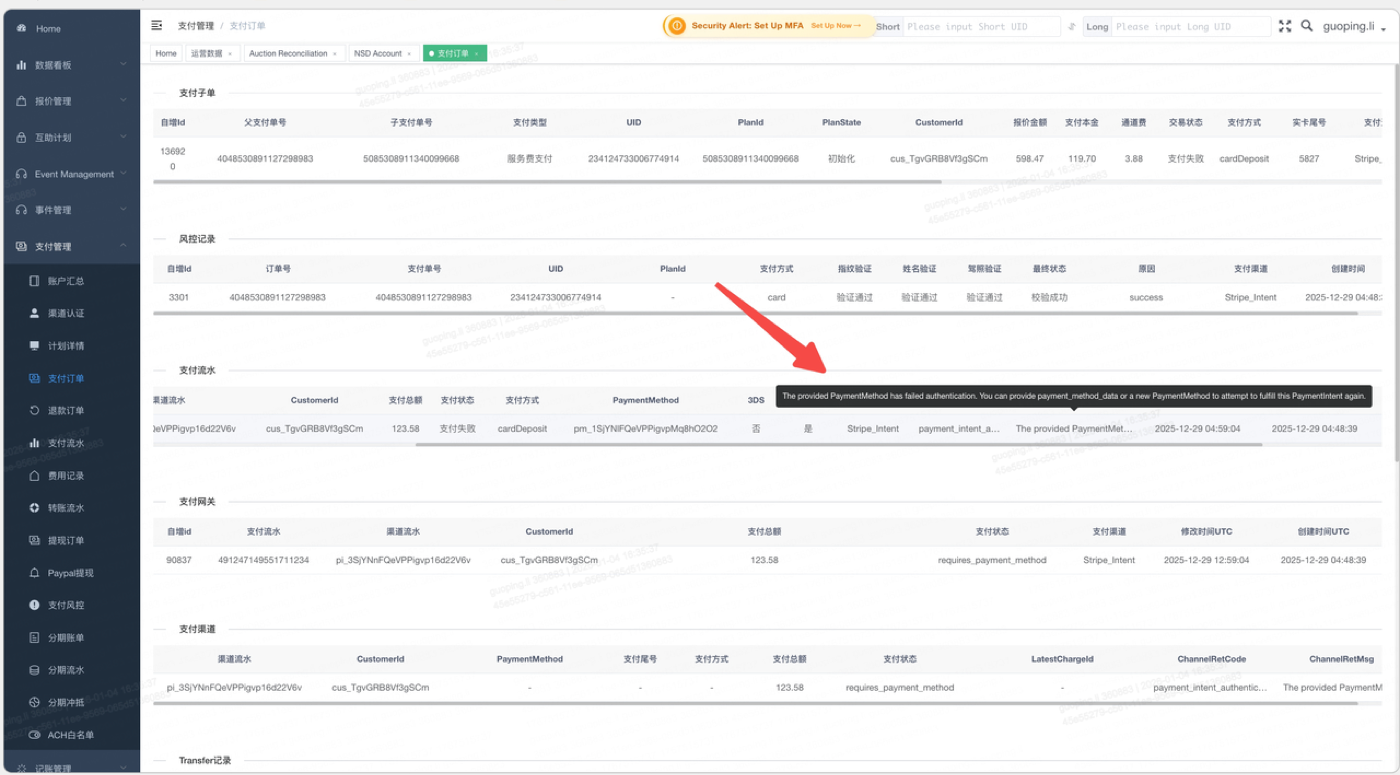
3DS authentication failed
If 3DS authentication fails, check for a text message, bank app notification, or other bank verification prompt. Follow the bank's instructions, return to the GDC App, and restart the payment so the 3DS verification can be completed correctly.
Payment setup was not completed
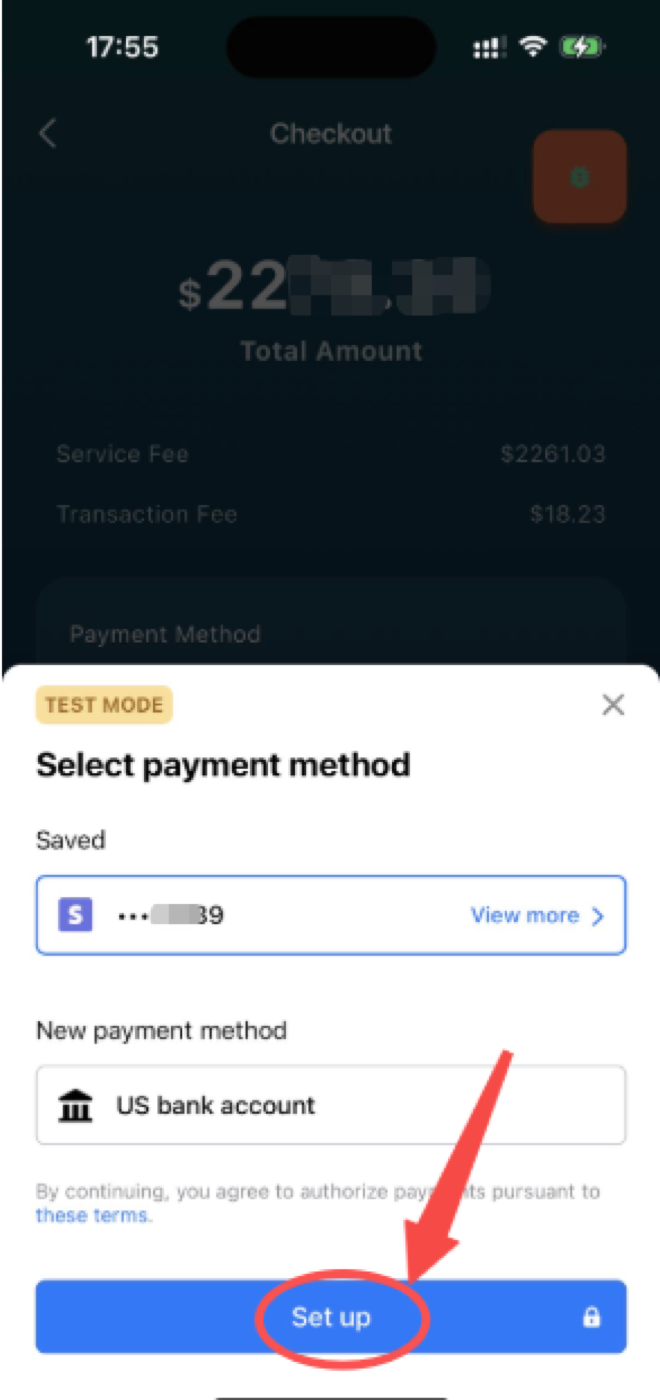
In some payment flows, tapping Pay without completing Set up may mean the payment was not started. Complete the setup step first, then retry the payment.
If a balance validation message appears, try again or wait until the next day and try again. If the account balance is sufficient and the payment still fails, contact support for help.