App, Account, and Navigation Guide
Use this guide for common GDC App tasks such as signing up, logging in, checking notifications, contacting support, changing account settings, and resetting a PIN.
For account and security rules, see App, Account, and Security.
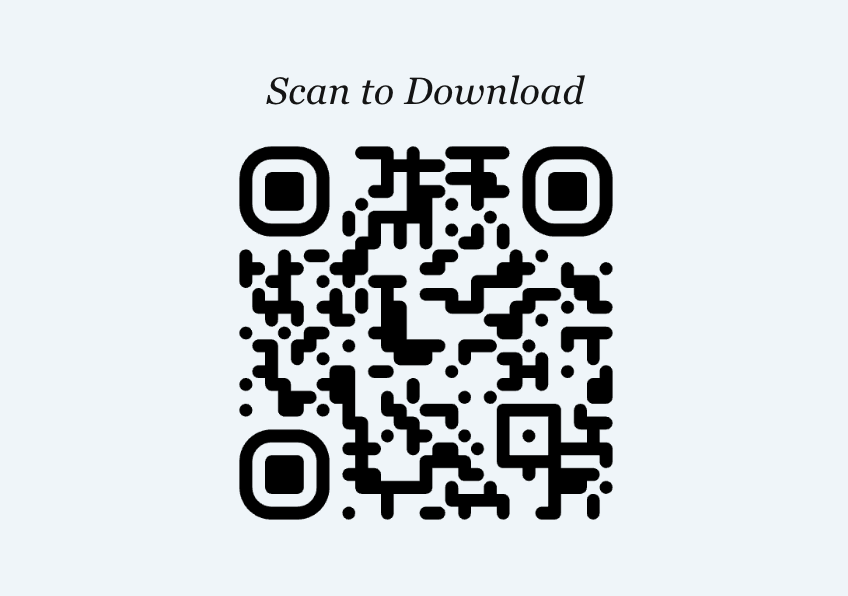
Download and access the app
Members use the GDC App for account management, plan details, payment settings, reporting incidents, affiliate tools, and other program actions.
The web quote page at h5.gooddriver.ai can be used for quote-related steps, but it does not replace the full app experience.
{ .support-guide-screenshot }
Sign up for an account
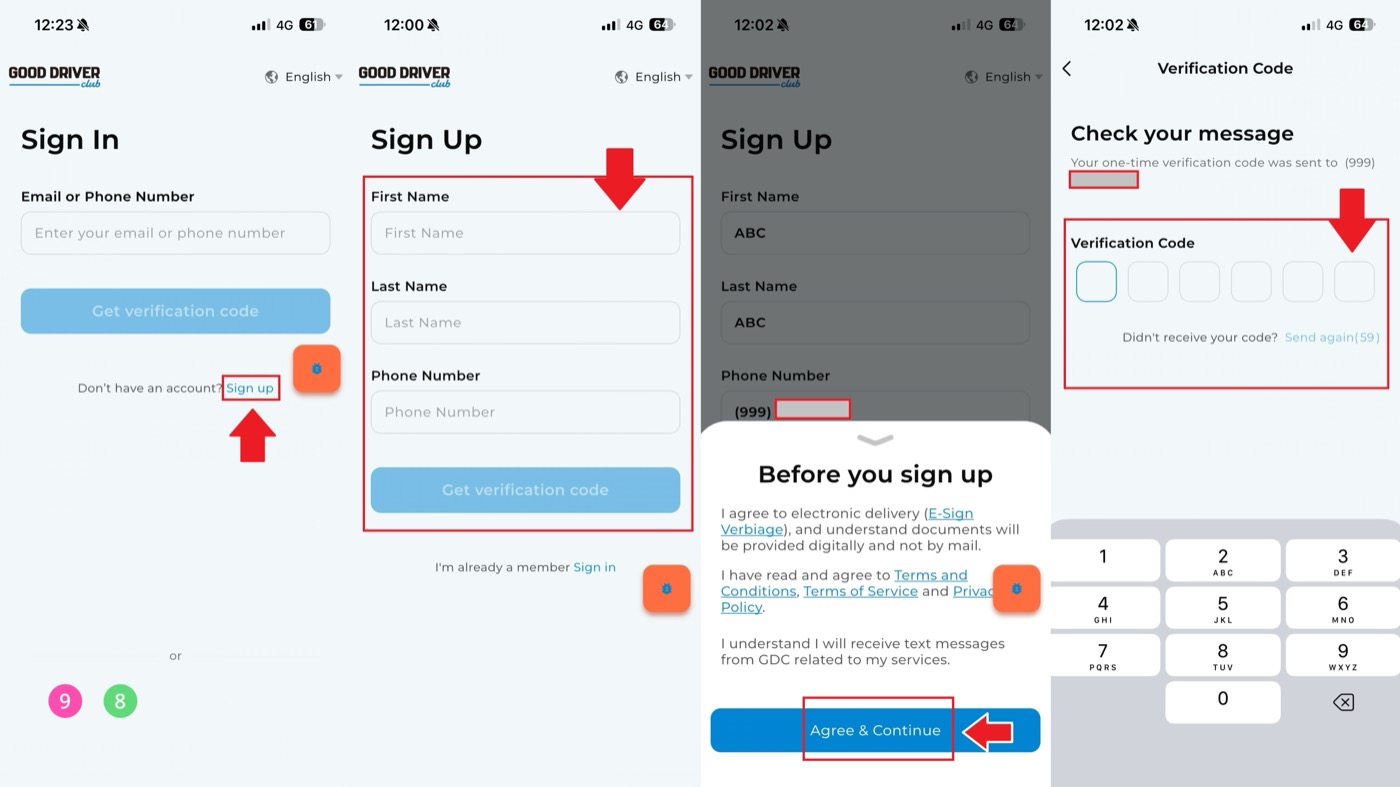
To create a GDC account:
- Download and open the GDC App.
- Tap Sign Up.
- Enter your mobile phone number.
- Tap Get Code.
- Read the user notice.
- Tap Agree and Continue.
- Enter the verification code sent to your phone.
{ .support-guide-screenshot }
Log in
To log into a GDC account, enter your phone number and verify it with the code sent to your phone.
If you need to use a different account on the same device, open your profile page and use Switch Account to log in with another phone number.
Log out
To log out:
- Open the GDC App.
- Tap your profile picture in the top-left corner.
- Scroll to the bottom of the profile page.
- Tap Log Out.
Delete an account
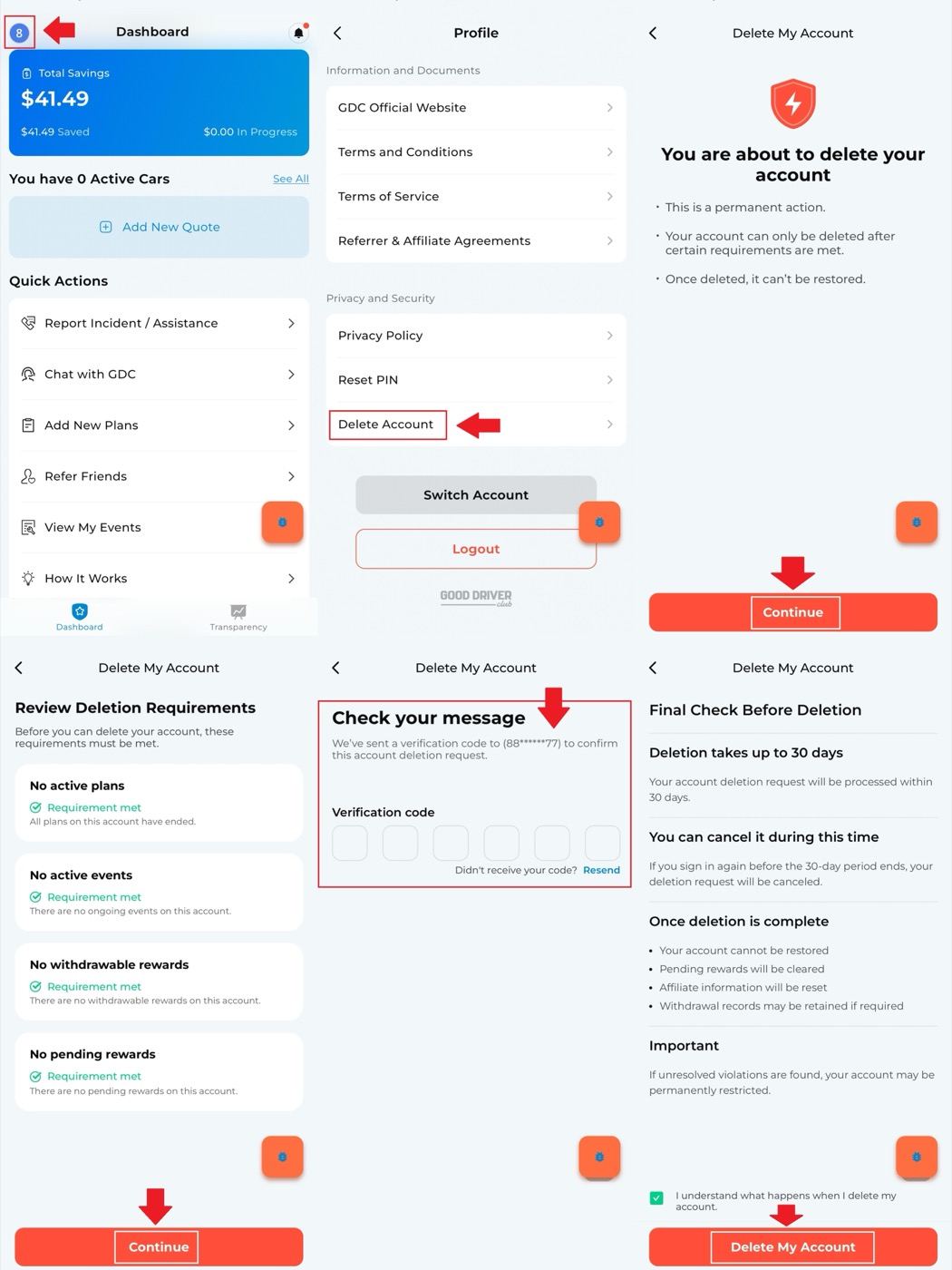
If you want to delete your GDC account:
- Open the GDC App.
- Tap your profile picture in the top-left corner.
- Scroll to Privacy and Security.
- Select Delete Account.
- Read the account deletion notice carefully.
- Continue only if you are sure you want to delete the account.
{ .support-guide-screenshot .support-guide-phone }
Check notifications
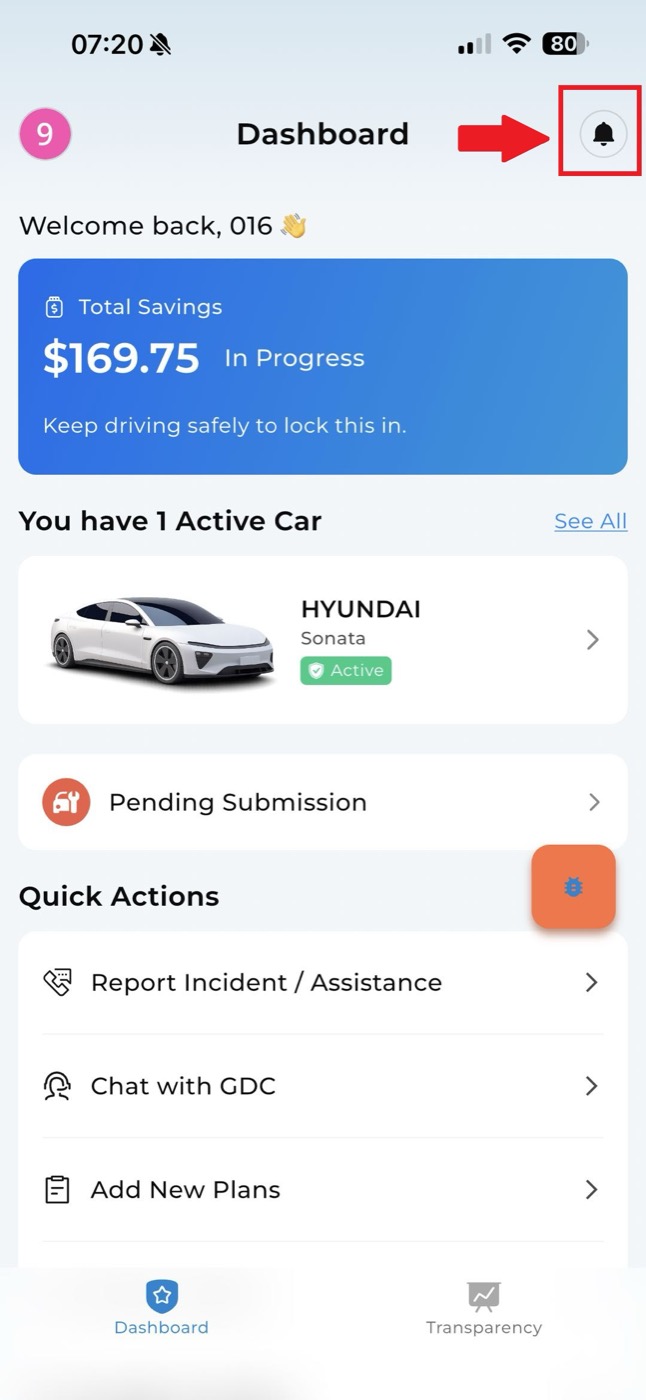
Tap the bell icon in the top-right corner of the GDC App to view account and plan notifications.
{ .support-guide-screenshot .support-guide-phone }
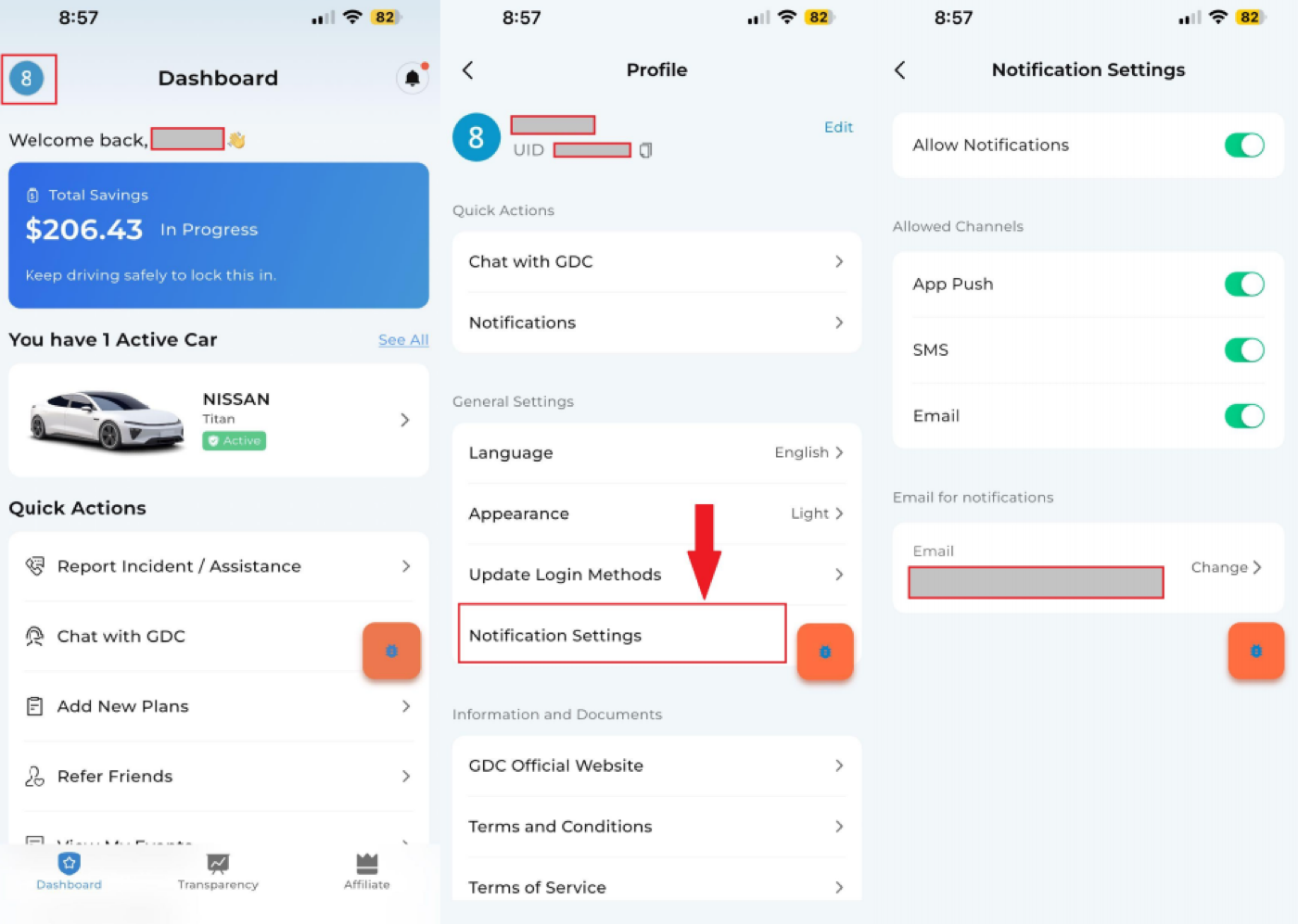
To manage notification settings:
- Tap your profile picture in the top-left corner.
- Select Notification Settings.
- Turn notification channels on or off based on your preference.
{ .support-guide-screenshot }
Check app version
To check the current app version:
- Open the GDC App.
- Tap your profile picture in the top-left corner.
- Open the profile page.
- Scroll to the bottom to view the current app version.
If you need to update the app, use the normal update process for your device.
Chat with GDC
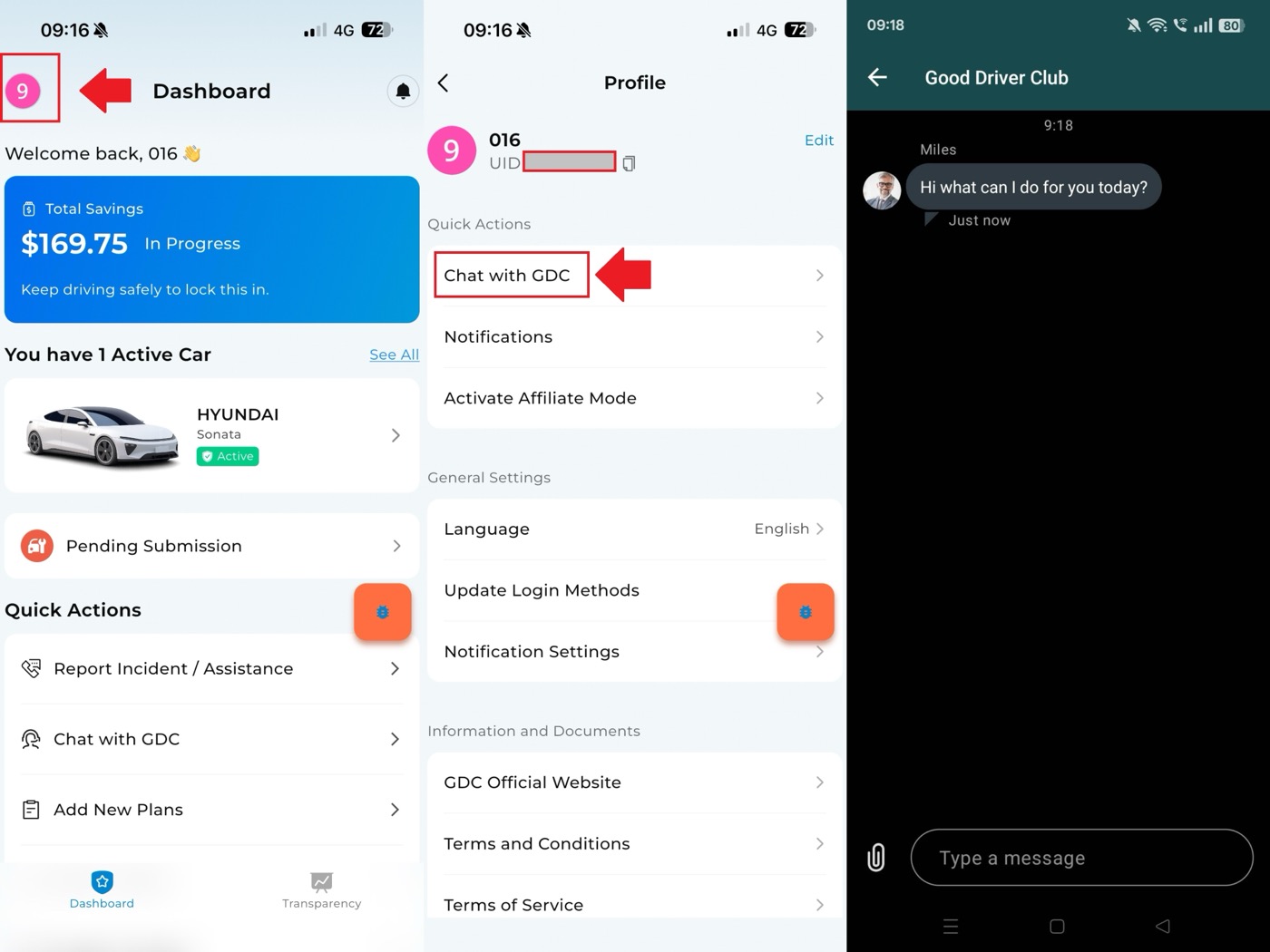
To contact GDC support in the app:
- Open the GDC App.
- Tap your profile picture in the top-left corner.
- Open the profile page.
- Tap Customer Service to enter the support chat.
{ .support-guide-screenshot }
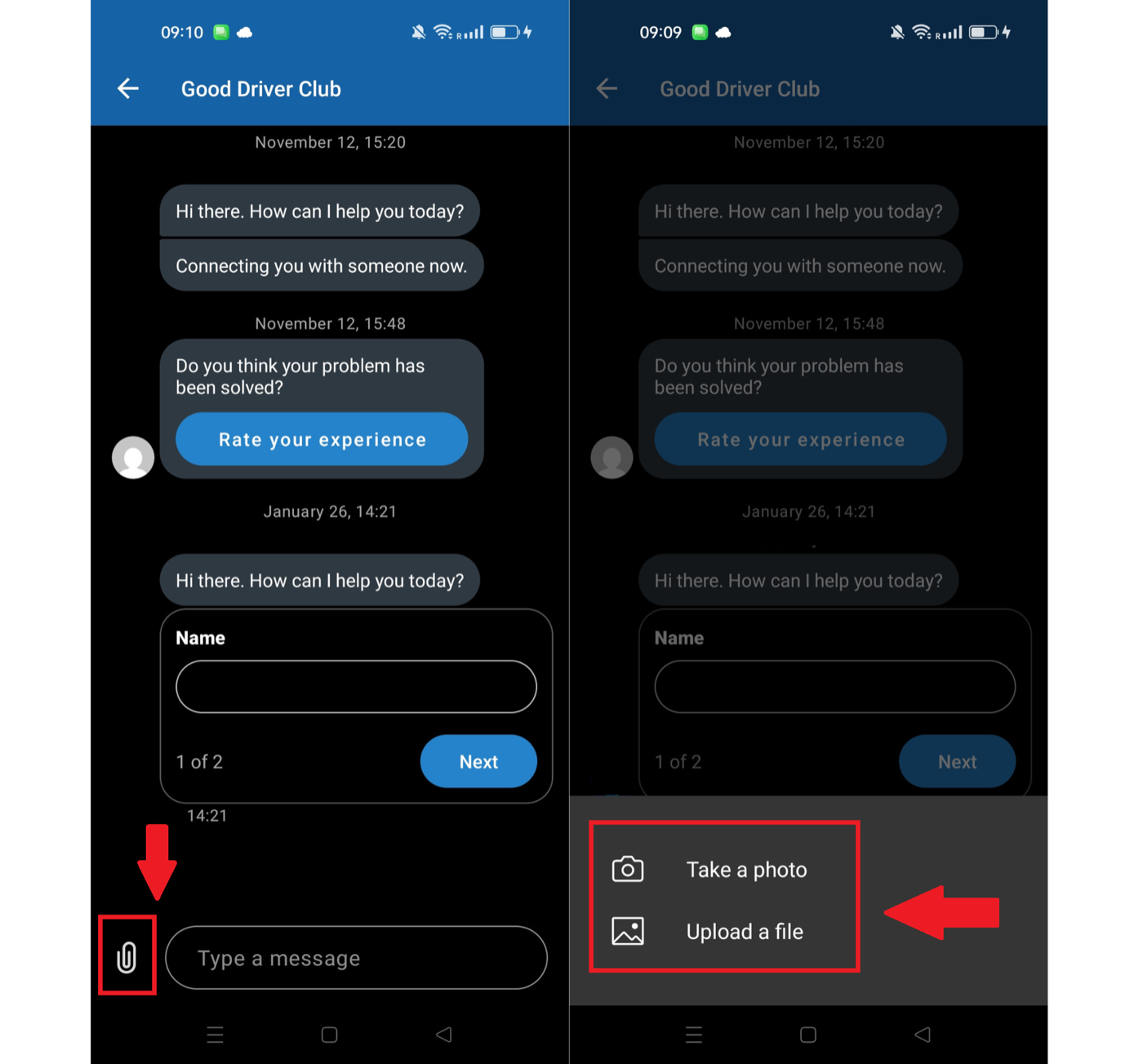
Send a picture to support
If support asks for a picture, tap the attachment button in the bottom-left corner of the chat and upload the photo.
{ .support-guide-screenshot }
Change login method
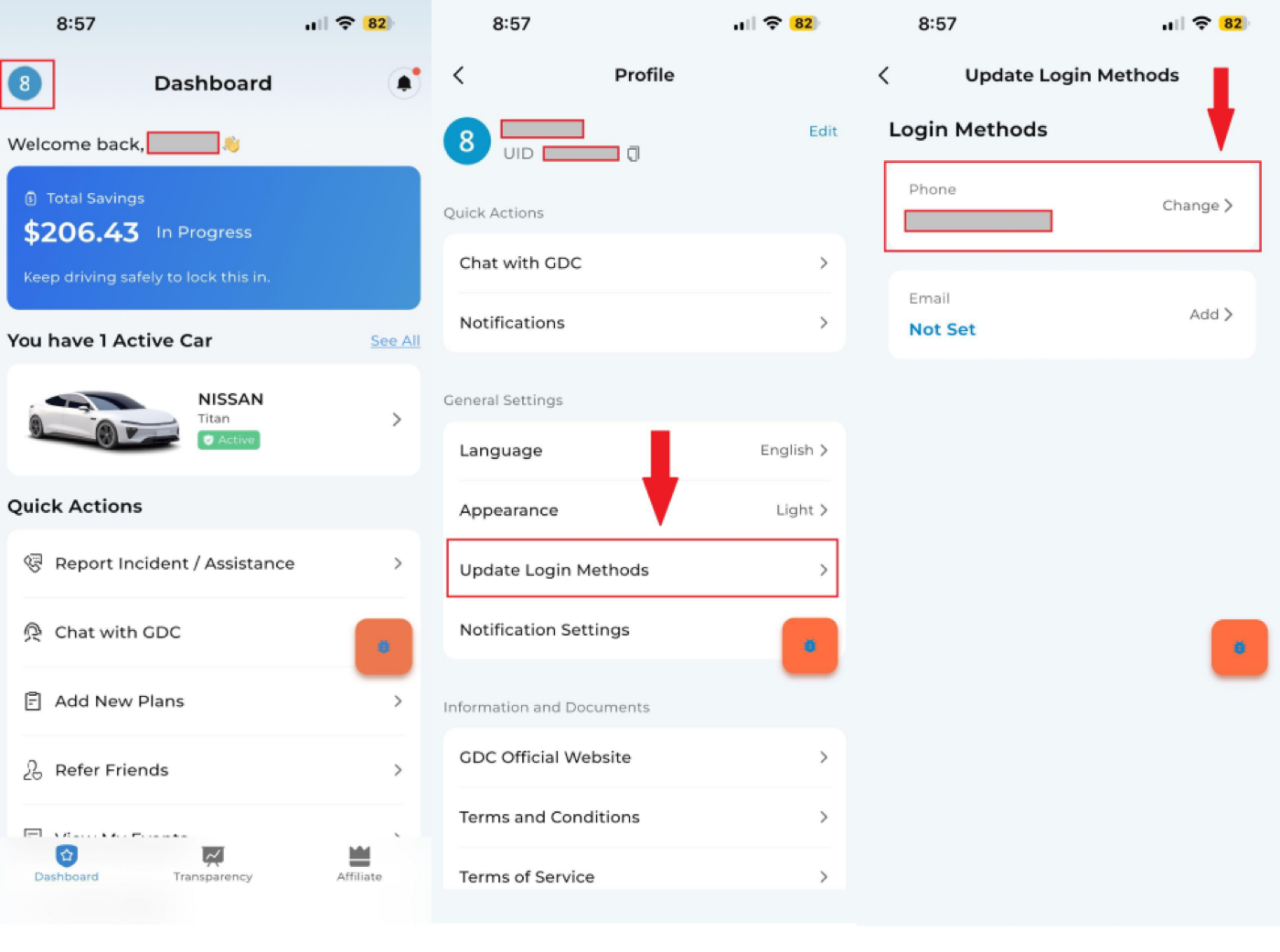
To change the phone number used for login:
- Open the GDC App.
- Tap your profile picture in the top-left corner.
- Select Update Login Method.
- Update the login phone number.
{ .support-guide-screenshot }
To change the email used for login, follow the same path and update the login email.
Update profile details
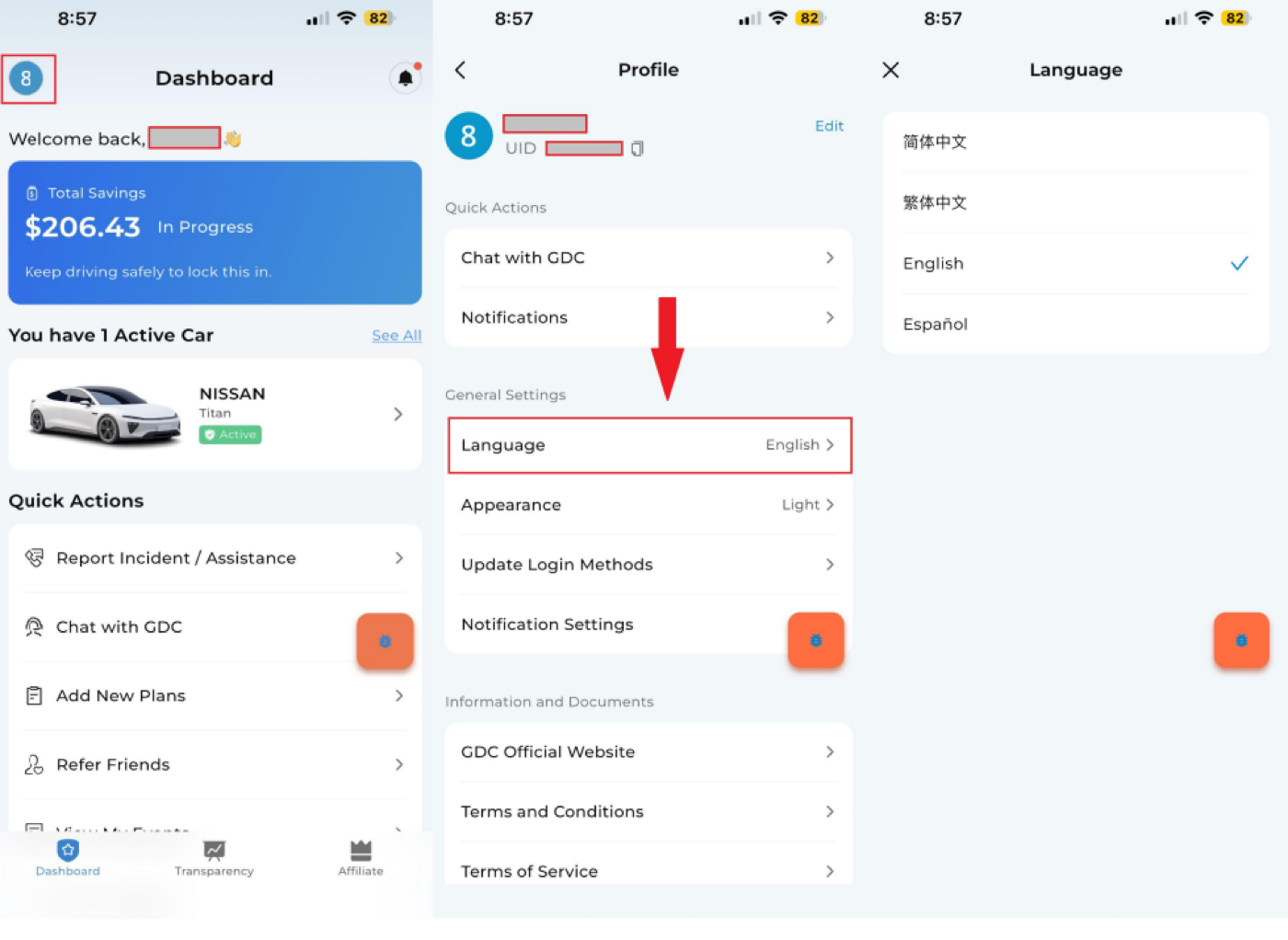
Open your profile page from the top-left profile picture. From there, you can:
- Change your profile picture.
- Change your nickname.
- Check your UID.
- Change the notification email.
- Change the app language.
- Change appearance mode.
{ .support-guide-screenshot }
Reset a PIN
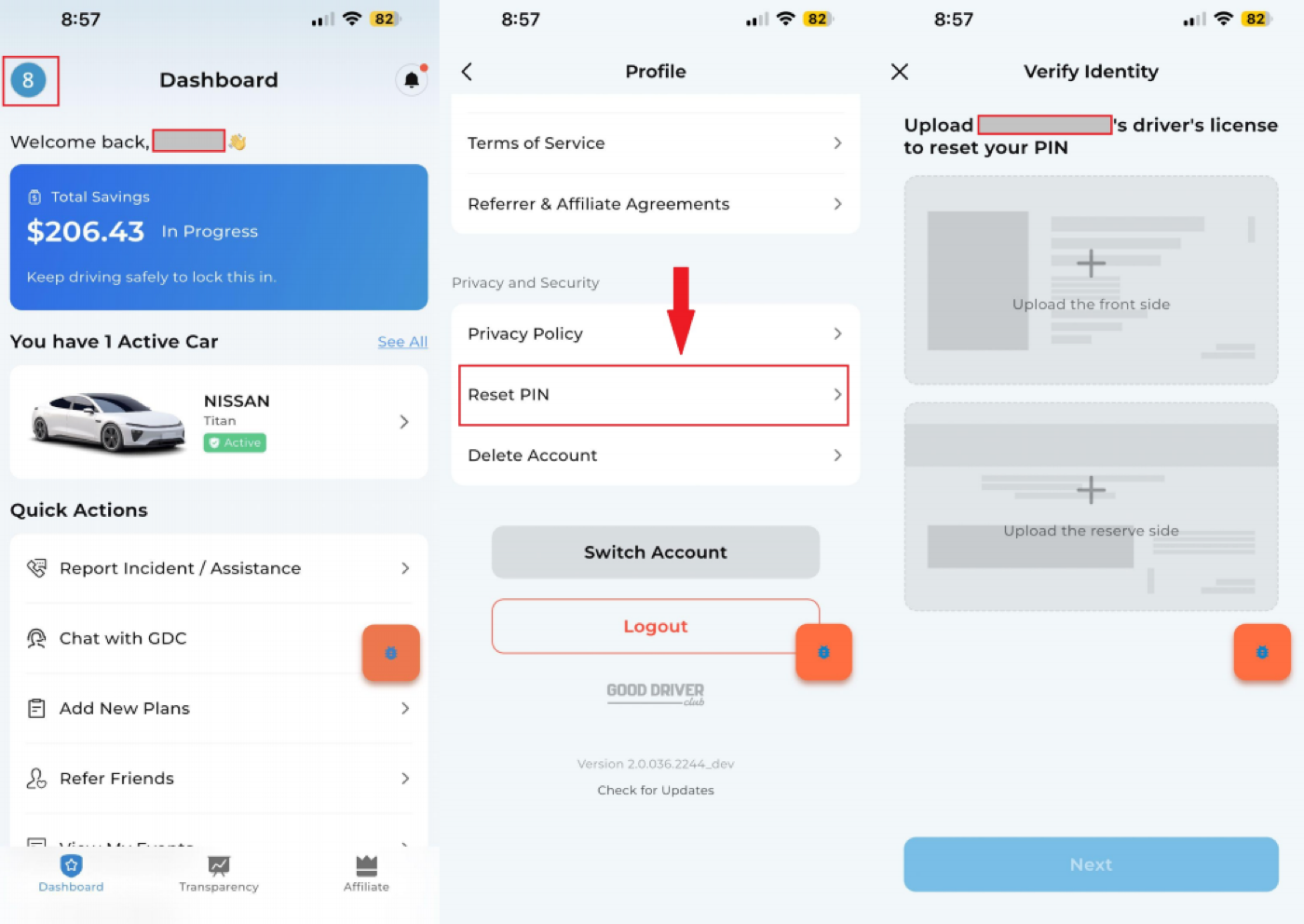
There are two common ways to reset a PIN.
From your profile:
- Tap your profile picture in the top-left corner.
- Go to Privacy and Security.
- Find Reset PIN.
- Upload your driver's license.
- Tap Next and follow the prompts.
From a plan:
- Open a mutuality plan.
- Scroll to Manage Plan.
- When the app asks for the PIN, choose the reset option.
- Upload your driver's license and follow the prompts.
{ .support-guide-screenshot }
If app features do not load correctly after a PIN issue, reset the PIN first and try the action again.