Quotes and Enrollment Guide
Use this guide when requesting a quote, uploading a declaration page, receiving a quote prepared by someone else, adding a driver, or fixing common quote and enrollment messages.
For eligibility and lifecycle rules, see Eligibility and Service Area and Enrollment, Quotes, and Plan Lifecycle.
Request a quote
To request a quote in the GDC App:
- Open the GDC App.
- Start a quote for yourself or for someone else.
- Upload the insurance declaration page.
- Select the vehicle.
- Confirm the plan holder.
- Verify driver information.
- Enter a referral code if applicable.
- Confirm the quote details and desired start date.
- Review and accept the agreement.
- Upload the driver's license when prompted.
- Create a 6-digit PIN.
- Finish the payment process.
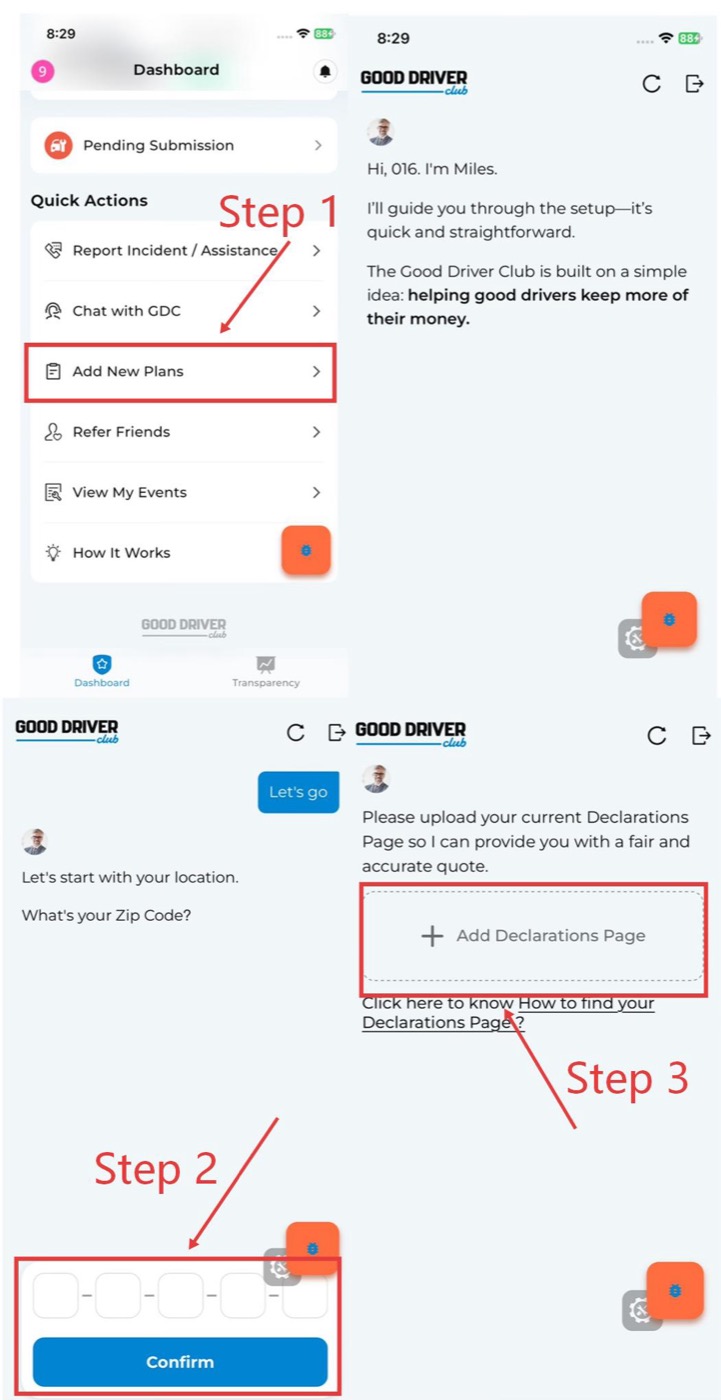
Full visual guide: Getting a Quote on the GDC App.
Declaration page requirements
When uploading an insurance declaration page, make sure the file is complete and includes:
- Policy number.
- Insurance company name and address.
- Policy effective dates.
- VIN for the vehicle being quoted.
- Coverage information.
- Policyholder information.
The declaration page should be clear enough for review. Missing or incomplete information can delay the quote.
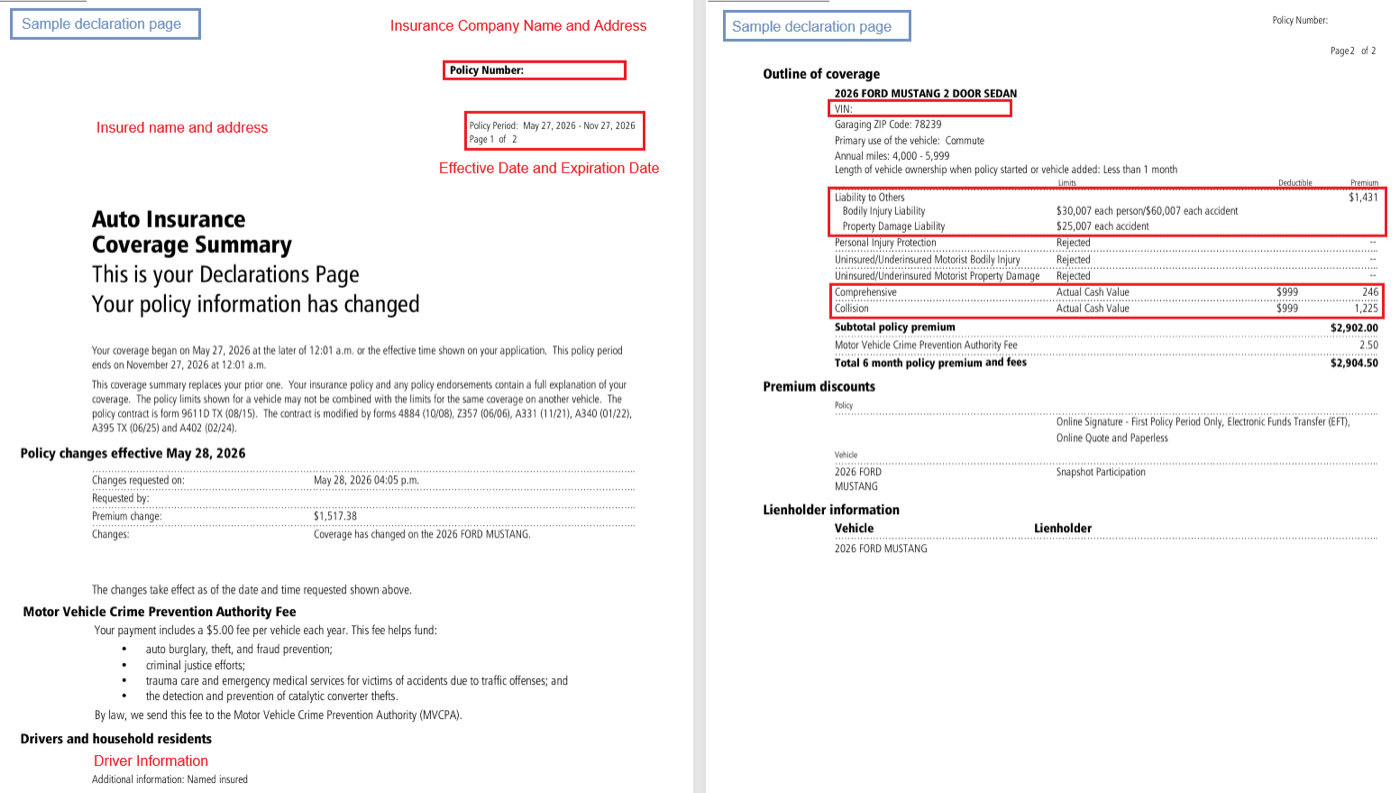
If you need help getting the declaration page from your insurer, use the declaration page tutorial.
Exit quote progress
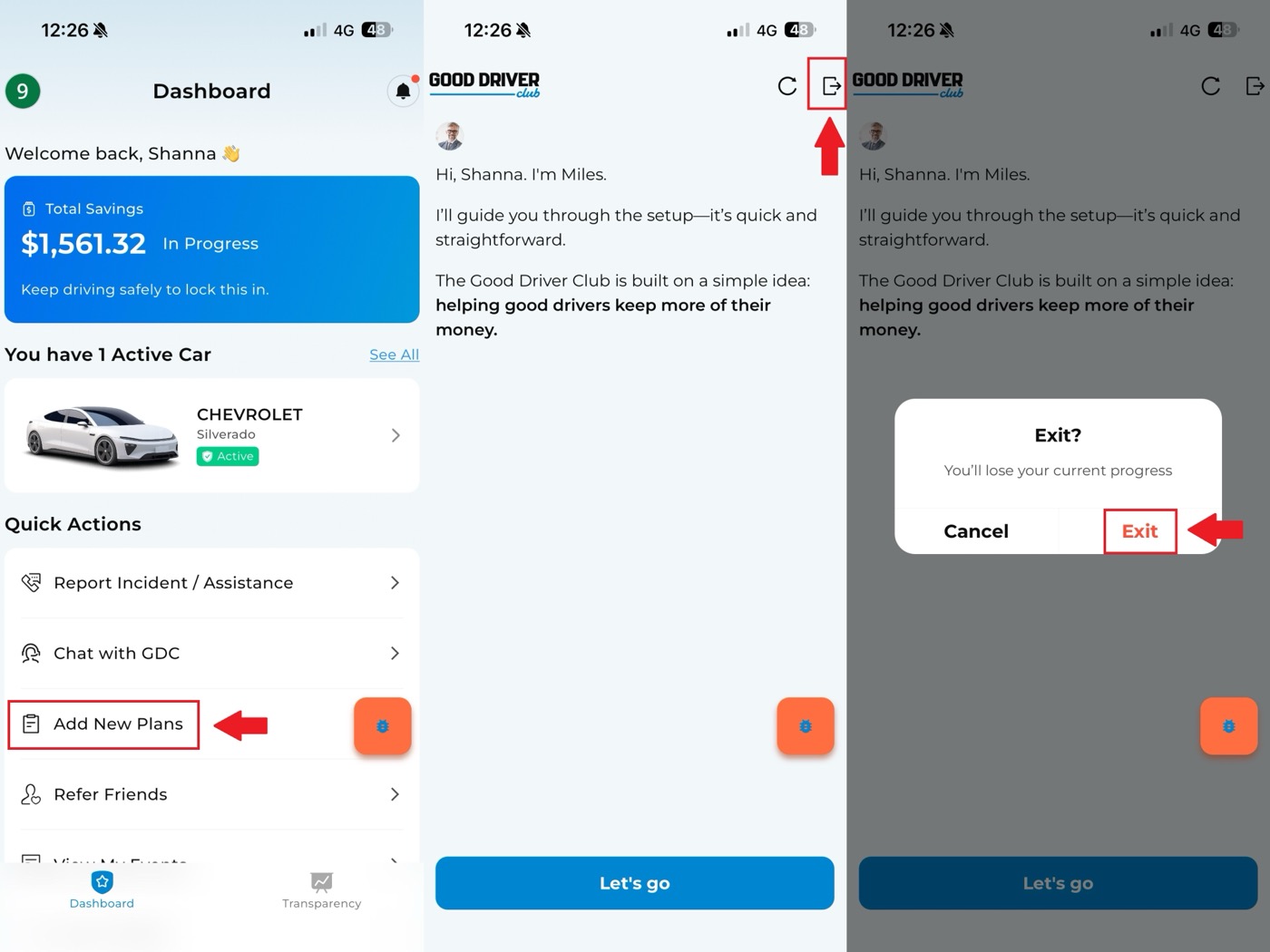
If you do not want to continue a quote:
- Tap the exit icon in the top-right corner.
- Tap Exit.
Quote for a friend
Before preparing a quote for a friend, collect:
- The vehicle's declaration page.
- Vehicle usage, such as personal or commercial use.
- Annual mileage.
- Years of ownership.
- Primary driver information, including name, driver's license number, issuing state, date of birth, gender, and marital status.
- Accident or traffic violation records from the past 5 years.
In the app, go to the affiliate quote flow, choose a new quote, enter the requested details, and confirm the driver and vehicle information before submitting.
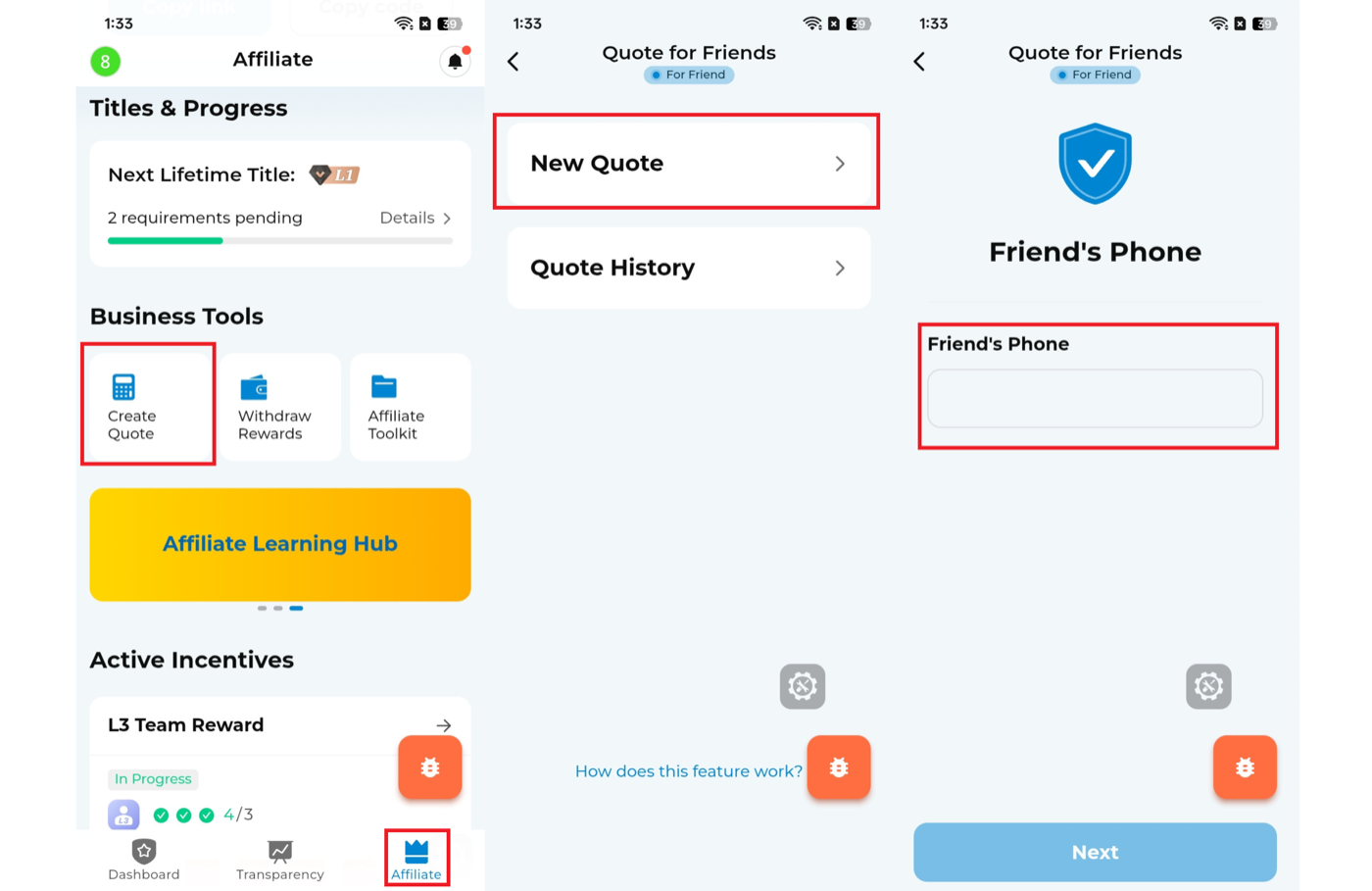
Full visual guide: Quote for Friends.
After receiving a quote prepared by someone else
If someone else prepared a quote for you:
- Sign up for a GDC account.
- Enter the verification code sent to your phone.
- Review and edit the quote if needed.
- Review and accept the agreement.
- Confirm your details.
- Upload your driver's license.
- Create a 6-digit PIN.
- Add your email.
- Confirm payment.
Full visual guide: Next Steps After Receiving a Quote.
Upload a driver's license
If you need to resubmit a driver's license, use the license upload entry in the PIN reset flow and follow the prompts.
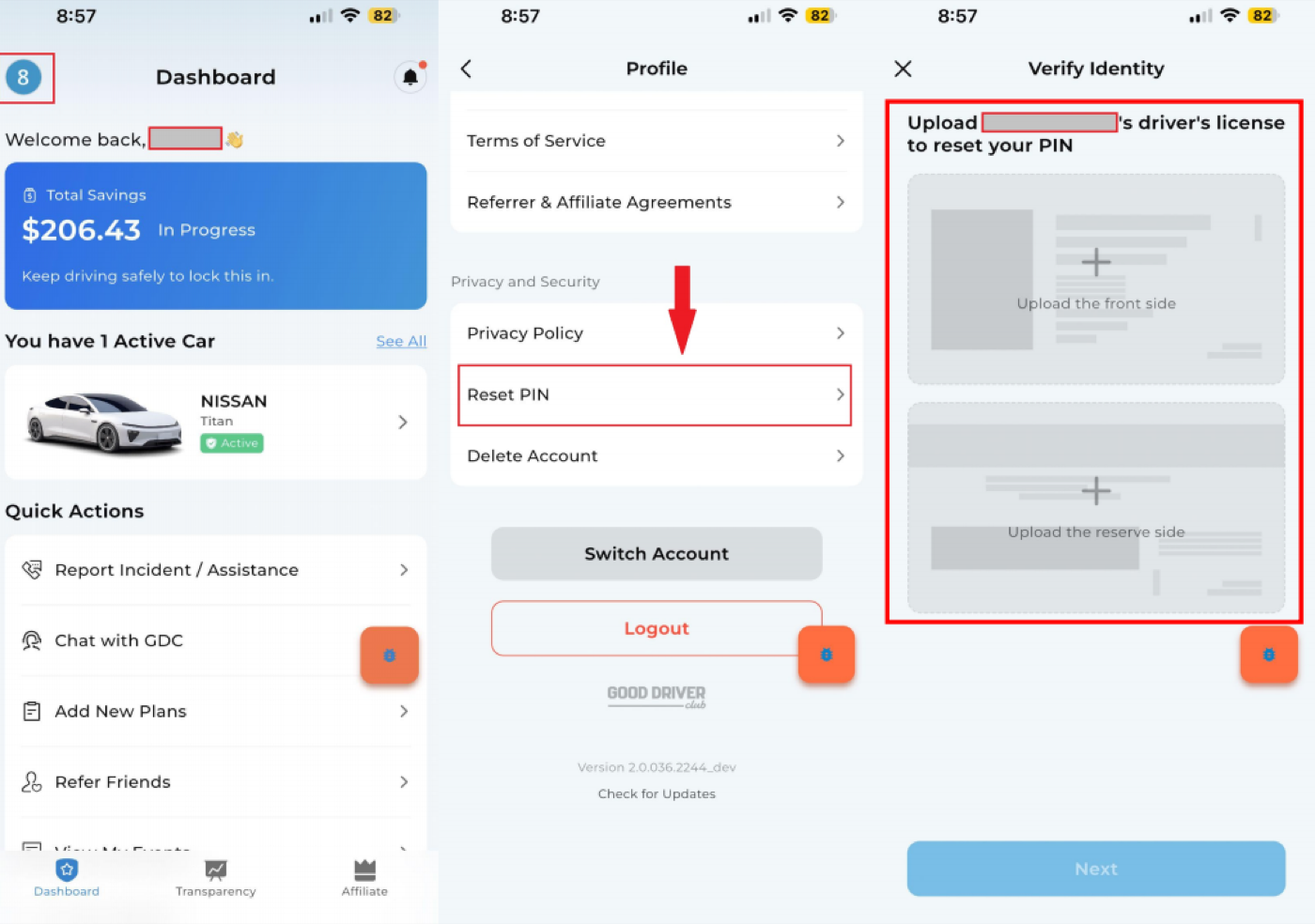
For license photos, make sure:
- All four corners are visible.
- Text and portrait are clear.
- No fingers, shadows, or objects cover the license.
- There is no strong glare.
- The original physical license is photographed.
- The license is valid and not expired.
Add an additional driver
To add an additional driver:
- Go to the Dashboard.
- Select the plan.
- Open Plan Details.
- Tap Manage Plan.
- Enter the PIN.
- Choose Driver.
- Add the driver information and follow the prompts.
Full visual guide: How to Add Drivers.
Address not eligible
If the declaration page address is not eligible, the app may not allow enrollment to continue.
To join GDC, members need to provide a valid U.S. address on the insurance declaration page. Addresses located in Hawaii, Alaska, New York, Massachusetts, Michigan, and Washington D.C. are currently not eligible to join.
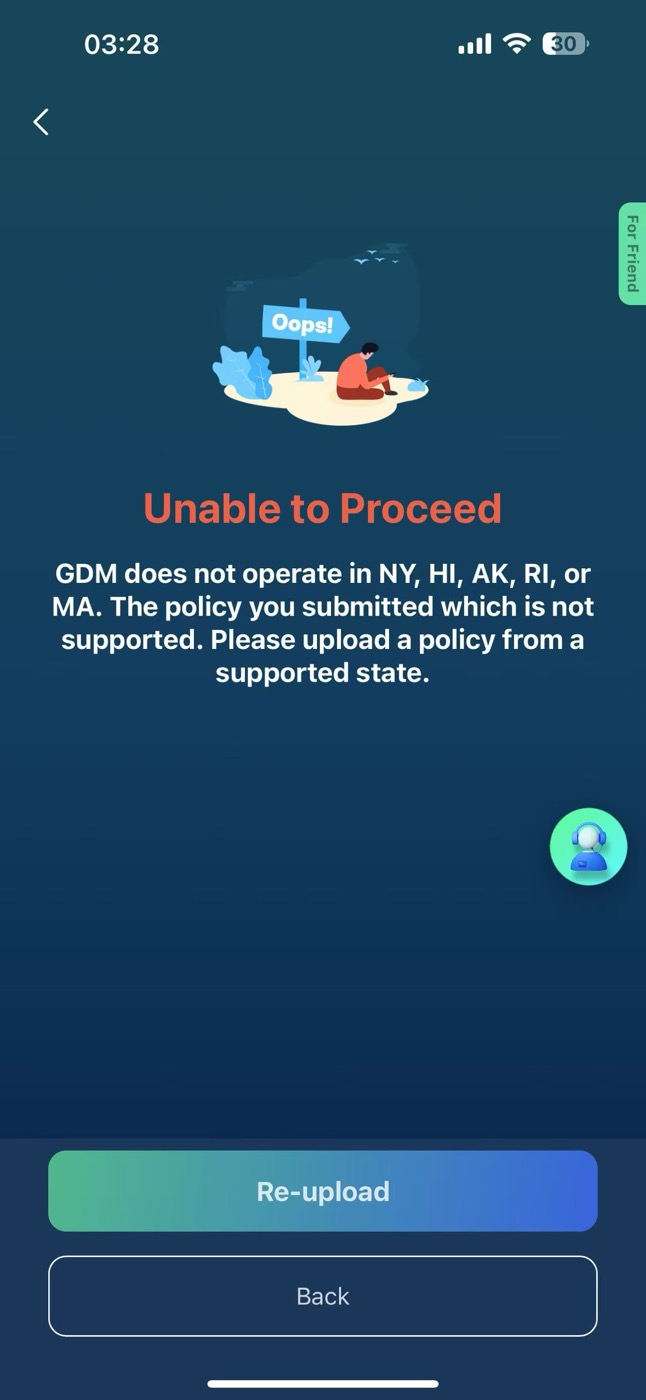
Uploaded information does not match
If the app says uploaded information does not match, check whether the name, license details, date of birth, and other identity information match the driver's license exactly. If the information is correct but the message continues, contact support.